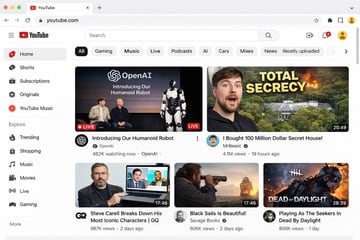


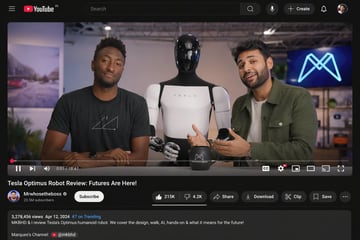
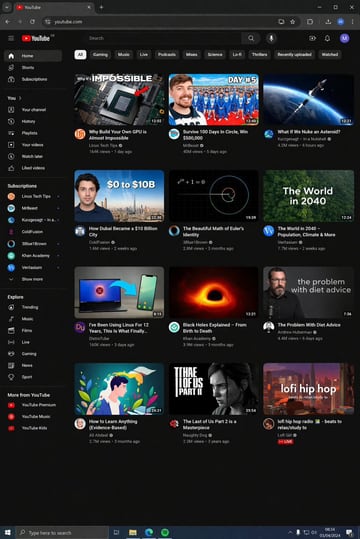
A useful YouTube thumbnail prompt turns the video idea into a frame that reads at small size. For standard horizontal videos, it defines one visual promise, one dominant subject, a simple contrast pattern, a clear title-safe area, and a 16:9 crop. The ten examples below cover tutorials, reviews, creator videos, business stories, food, travel, interviews, and live streams in that horizontal format.
Each example is written as a production brief. Generated output varies with the subject, reference image, and generation settings, so review every result against the actual video. Accurate thumbnails build a clearer connection between the cover and the content.
Quick answer
For a standard horizontal video, start with this reusable structure:
Create a 16:9 YouTube thumbnail for [video topic]. Show [dominant subject] communicating [video promise], using [layout pattern], [background], [lighting], and [color contrast]. Reserve [title-safe area] for final text. Keep the subject recognizable at small size and keep secondary details quiet.
Horizontal and vertical video covers
Use the 16:9 examples in this guide for standard horizontal videos. Vertical video can appear across different surfaces, where a 4:5 cover or an automatically selected frame may be used. The visible crop can vary by upload flow and placement. Check the current publishing preview before release, then adapt the source canvas, subject clearance, and title-safe area to the surface that will display the video.
Choose the layout before the visual style
Most thumbnail briefs fit one of four layout patterns:
- Face plus object: a person occupies one side and the result, product, or problem occupies the other.
- Before and after: two clearly different states share the frame with a strong divider.
- Single-object proof: one product, meal, screen, or artifact fills the frame and carries the story.
- Scene plus evidence: a wider scene establishes context while one visible cue explains the claim.
Pick one pattern, then choose lighting, palette, lens, and texture. This order keeps the prompt tied to the video job.
Editable variables
- Video promise: the result, question, comparison, test, or transformation covered by the video.
- Dominant subject: the face, product, screen, meal, place, or artifact viewers should notice first.
- Evidence cue: a visible before-after state, broken part, finished result, chart shape, or reaction.
- Layout pattern: face plus object, split screen, single-object proof, or scene plus evidence.
- Title-safe area: an uncluttered top band, left column, right column, or bottom strip.
- Background: one simple environment cue with reduced detail behind the focal subject.
- Light and contrast: rim light, soft window light, hard graphic contrast, or a controlled color accent.
- Crop: 16:9 for standard horizontal videos, with enough edge clearance for platform cropping and later text placement; verify the current preview for vertical-video surfaces.
- Exclusions: tiny labels, repeated arrows, crowded props, illegible charts, and visual claims absent from the video.
10 copyable YouTube thumbnail prompt examples
1. Software tutorial before and after
Create a 16:9 YouTube thumbnail for a video about cleaning up a complicated editing timeline. Show a cluttered timeline on the left and a calm organized timeline on the right, one bold center divider, laptop screen large in frame, dark navy background, electric blue accent light, and a clean top band for the final title. Keep interface details broad and readable at small size.
The split layout makes the transformation visible before any title is added.
2. Camera review
Create a 16:9 YouTube thumbnail for a compact camera review. Show the camera very large in the foreground, a creator examining one physical control on the right, softly blurred outdoor scene, crisp rim light around the product, warm skin tones, and a clean lower-left title area. Keep the camera shape accurate and remove unrelated gear.
The reviewed object leads the frame while the creator supplies scale and human context.
3. Build-in-public update
Create a 16:9 YouTube thumbnail for a product-building update. Show a creator holding a small working prototype, face and prototype equally visible, workshop background reduced to two soft shapes, orange status light, cool grey shadows, and a title-safe area in the upper right. Use a curious focused expression and keep the prototype unobstructed.
The prompt connects the person, the artifact, and the update without filling the frame with process details.
4. Business teardown
Create a 16:9 YouTube thumbnail for a business model teardown. Show one simple storefront model on a table with a single rising line reflected behind it, close camera angle, charcoal background, green accent line, strong subject separation, and a clean left title column. Use a diagram-like composition with no small numbers or labels.
A single direction cue communicates analysis while avoiding an unreadable dashboard.
5. Coding project
Create a 16:9 YouTube thumbnail for building a small web app in one weekend. Show a laptop with one clean app screen, a hand placing the final feature card onto the interface, desk background with only a notebook and timer, focused pool of light, black and orange palette, and a clear right-side title area.
The hand action and finished screen make the build result concrete.
6. Cooking result
Create a 16:9 YouTube thumbnail for a grilled cheese technique video. Show one dramatic cheese pull filling the center, toasted texture sharply visible, dark plate, soft kitchen background, warm side light, one small ingredient cue, and a clean upper-left title area. Keep hands secondary and remove extra dishes.
The finished food carries the promise and remains recognizable in a compact preview.
7. Travel mistake guide
Create a 16:9 YouTube thumbnail for a video about common carry-on packing mistakes. Show an open suitcase with one oversized item failing to fit, traveler reaction on the left, airport background softened into simple shapes, red warning accent, bright daylight, and an uncluttered top-right title zone.
The physical problem explains the topic through one readable moment.
8. Interview or podcast
Create a 16:9 YouTube thumbnail for a founder interview about the first year of a company. Show the guest in a close three-quarter portrait, one microphone edge in the foreground, a small product prototype on the opposite side, dark neutral studio, warm key light, and a clean center-left title area. Keep the expression natural and the background quiet.
The guest remains the main subject while the prototype adds specific context.
9. History documentary
Create a 16:9 YouTube thumbnail for a short documentary about a lost railway station. Show the abandoned station sign large in the foreground and a faint archival train silhouette in the distance, misty morning light, muted sepia and blue palette, strong depth, and a clean lower-right title strip. Keep the scene grounded and free of invented dates.
One surviving object and one contextual layer create a clear historical question.
10. VTuber live stream
Create a 16:9 YouTube thumbnail for a relaxed VTuber chat stream. Show one original anime avatar from the shoulders up, friendly wave, bold coral and black background shapes, one small chat-bubble cue, bright face lighting, and a clean left title column. Keep the avatar silhouette clear and reserve exact stream text for post-production.
The avatar, mood, and stream cue stay legible while the final schedule and title remain editable.
Prompt breakdown
- Subject
- One face, object, screen, meal, place, or artifact tied directly to the video.
- Composition
- A 16:9 layout for a standard horizontal video, with one focal point, one contrast idea, and a named title-safe zone.
- Lighting
- Light that separates the subject from a quiet background at small size.
- Output
- A cover image ready for final typography, brand treatment, and placement beside the real video title.
A repeatable thumbnail review method
Use the same three-pass check for every generation. This creates a consistent evaluation process without claiming that a visual will produce a specific click-through rate.
Pass 1: the small-size test
Reduce the image until the longest edge is roughly the width of a typical recommendation card. Ask one question: can you identify the subject and the video idea in a second? Increase subject scale or simplify the background when the answer is unclear.
Pass 2: the title-overlay test
Place the real title in the reserved area using the channel typography. Check the face, product, and key evidence cue for overlap. Move the safe area in the prompt when the title competes with the focal subject.
Pass 3: the one-variable test
Create a second version by changing one variable: expression, crop, evidence cue, background value, or title position. Keep the rest of the prompt stable. A controlled comparison makes the useful change easier to identify.
Record the prompt, the changed variable, and the review outcome. This log becomes a channel-specific brief library over time.
How to customize the template
1. Write the video promise as a visible event or result. “A suitcase that cannot close” gives the prompt more direction than “travel mistakes.” 2. Choose a single dominant subject and describe the feature that matters: expression, product edge, screen module, food texture, or object condition. 3. Select one layout pattern and one title-safe region. 4. Add a background cue that establishes context with limited detail. 5. Choose light and color contrast that support the channel identity. 6. Set 16:9 for a standard horizontal video and keep important content away from the outer edges. For vertical video, check the current 4:5 or automatic-frame preview and adapt the canvas before generation. 7. Generate the image, add exact text in a design tool, and check the complete thumbnail beside the video title.
When a reference thumbnail has a useful structure, the image-to-prompt tool can help describe subject scale, layout, lighting, and empty space. Rebuild those structural choices around your own topic, people, assets, and brand.
Common mistakes and fixes
Make a viral YouTube thumbnail with a shocked face, arrows, lots of text, and dramatic effects.
Create a 16:9 YouTube thumbnail for a video about repairing a damaged camera. Show the broken lens on the left and the clean repaired camera on the right, creator hand pointing to the repaired edge, one center divider, dark workshop background, sharp rim light, and a clear upper-right title area.
The revised brief describes the real video promise, visible evidence, layout, light, and final text position.
- Crowded story: pick one moment that represents the video and remove secondary props.
- Tiny interface details: describe one recognizable screen state and add exact labels during finishing.
- Generic reaction: connect the expression to a visible object or event in the frame.
- Weak hierarchy: enlarge the subject, quiet the background, and use one accent color.
- Blocked title area: name the safe zone and protect it from faces, hands, products, and high-contrast texture.
- Misleading proof: keep charts, damage, results, and comparison states consistent with the actual video.
- Rewriting every variable: preserve the prompt and change one decision per variant.
Image2Studio workflow
- Copy the closest example and replace the bracketed decisions with your video topic.
- Use Prompt Optimizer when the brief contains repeated adjectives or conflicting layout instructions.
- Open the prompt in Image2Studio and review ratio, resolution, and credit cost before generation.
- Generate a structurally conservative version first, then vary one element at a time.
- Save the selected image with its source prompt so the next episode can reuse the same composition system.
- Add final title text and channel graphics in your normal design workflow.
Pre-publish checklist
- The thumbnail and video make the same promise.
- One subject leads the frame at small size.
- The title-safe area fits the real title.
- The background contains only useful context.
- The focal subject has clear edge contrast.
- Faces, products, and screenshots remain recognizable after the 16:9 crop for a standard horizontal video.
- A vertical-video cover has been checked in the current surface preview, including any 4:5 crop or automatically selected frame.
- Exact words, numbers, and brand marks have been checked during finishing.
- Any person, logo, or reference asset is used with appropriate permission.
Where to go next
Browse the YouTube thumbnail prompt category for more image-backed examples, use the social-ad category to compare hook and layout patterns, or open image-to-prompt when you already have a reference composition. The cinematic collection can help with lighting variations after the thumbnail structure is stable.
What should a YouTube thumbnail prompt include?
For a standard horizontal video, include the video promise, dominant subject, visible evidence cue, layout pattern, background, lighting, title-safe area, and 16:9 crop. Keep secondary details limited.
Should a vertical video use the same 16:9 thumbnail?
Vertical video can appear on surfaces that use a 4:5 cover or an automatically selected frame. Check the current publishing preview, then adapt the source canvas, subject clearance, and title-safe area for that placement.
Can I copy these YouTube thumbnail prompts?
Yes. Replace the topic, subject, evidence cue, colors, and title position with details from your own video, then review the generated image before publishing.
Should the AI image include the final thumbnail text?
A practical workflow reserves a clean title-safe area and adds exact wording during design finishing. This gives you direct control over spelling, hierarchy, and brand typography.
How do I make a face-led thumbnail feel less generic?
Describe the reason for the expression, place the related object or result in the same frame, and specify a natural pose. The visible relationship carries more information than an isolated reaction.
Can I use an existing thumbnail as a reference?
Use a reference to study layout, subject scale, contrast, and empty space, then rebuild the brief around your own topic and assets. Respect the rights attached to source images, people, and brand elements.
Is Image2Studio affiliated with YouTube?
Image2Studio is an independent prompt and image workflow product. YouTube is referenced only to describe the intended thumbnail format and publishing context.