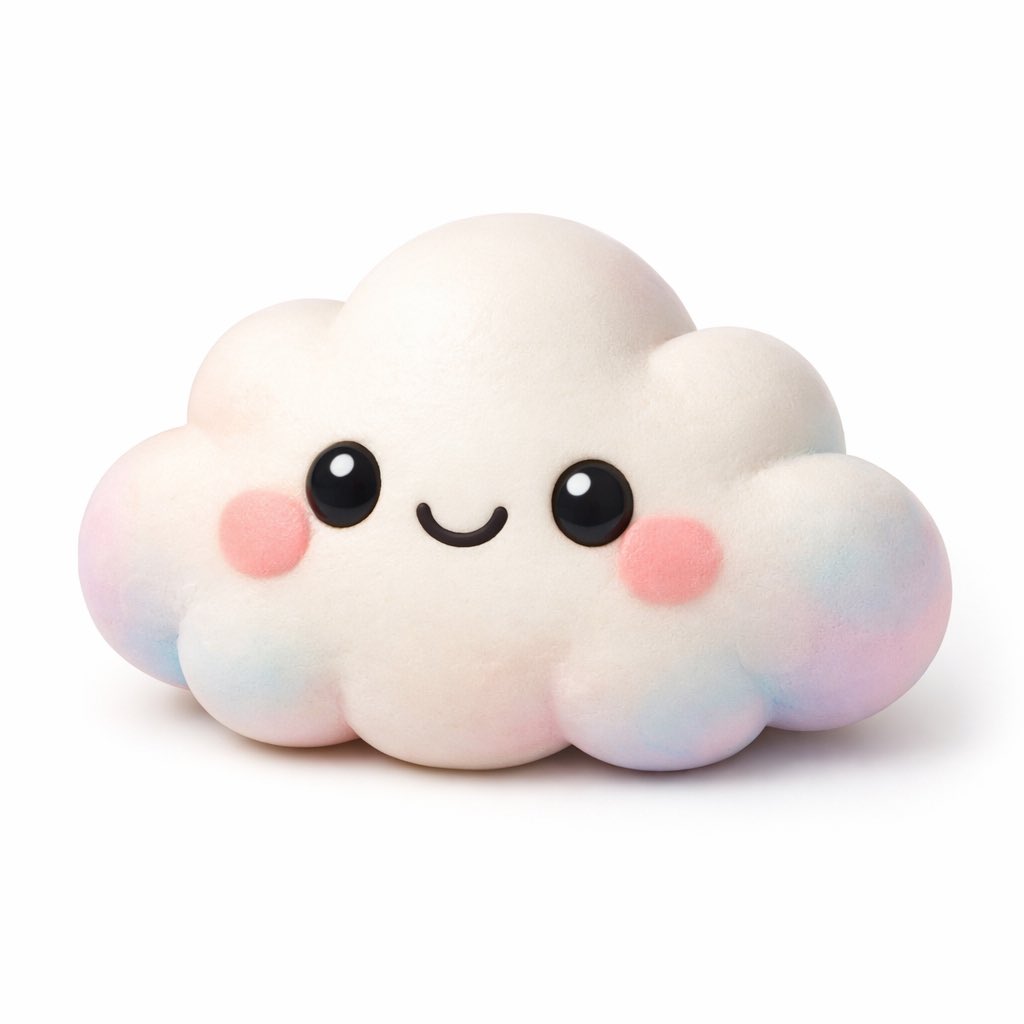
提示词A 3D render of a cute kawaii {argument name="subject" default="cloud"} character on a pure white background. The character has a soft, matte, squishy texture resembling clay or a stress toy. It features large glossy black eyes with white highlights, a simple curved smile, and round pink blush on its cheeks. The edges and bottom of the figure have a subtle pastel gradient of {argument name="accent colors" default="pink, blue, and purple"}. Soft studio lighting, minimalist icon style, casting a gentle shadow.
提示词结构- 模型gpt-image-2
- 用途avatar
- 风格minimal, 3d-render, anime
- 画幅Flexible
适用场景- 用途avatar
- 风格minimal, 3d-render, anime
- 推荐规格1:1, 4:5, 16:9, or 9:16
- 模型GPT Image 2
如何修改把这个 Kawaii 3D Character Icon 提示词当作起点。替换主体、产品细节、场景、光线、品牌颜色和输出画幅,同时保留 avatar 的用途和 minimal, 3d-render, anime 的视觉方向。
可替换变量- 主体替换成你的产品、人物、场景或界面对象。
- 用途保留或改写为 avatar、广告图、封面、海报或电商主图。
- 画幅按投放位置选择 1:1、4:5、16:9 或 9:16。
- 品牌线索补充颜色、材质、道具、文案安全区和最终使用平台。
推荐规格先按目标平台选择画幅,再根据用途选择 1K、2K 或 4K。产品图和海报通常适合更高清晰度。
生成前检查- 检查主体、光线、构图和画幅都足够明确。
- 检查如果图片要承载标题或广告文案,已经预留文字安全区。
- 检查生成前确认分辨率、额度成本和最终使用位置。
为什么有效Kawaii 3D Character Icon 的重点是先固定图片用途,再用主体、构图、光线、风格和画幅控制生成结果。它适合 avatar,并保留 minimal, 3d-render, anime 的视觉方向。
常见问题- 能直接用吗?可以。先替换主体、品牌线索和画幅,再进入 Image2Studio 生成。
- 适合什么比例?按平台选择 1:1、4:5、16:9 或 9:16。