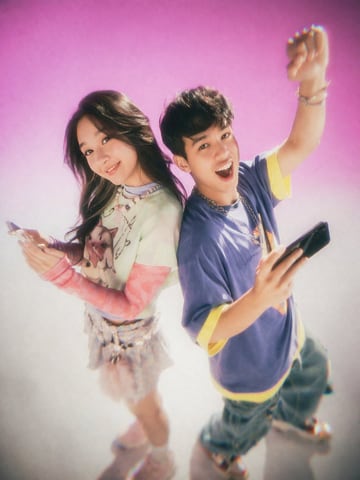
An effective AI avatar prompt protects the few signals that make a person, character, or mascot recognizable after a square or circular crop. Define the destination, identity anchors, expression, crop, background, lighting, and style strength before generating variants. The ten examples below cover professional profiles, creator accounts, team pages, gaming communities, anime characters, podcasts, and product mascots.
For real people, use reference images you have permission to use. Review the final image for likeness, context, and appropriate disclosure before publishing it. For fictional characters and mascots, create original identifying details and keep those details stable across variants.
Quick answer
Use this reusable structure:
Create a [square or circle-safe] avatar for [platform or role]. Show [person, original character, or mascot] with [three identity anchors], [expression], [shoulder-up or icon crop], [simple background], [lighting], and [style strength]. Keep the face or silhouette clear at 48 pixels and leave comfortable space around the crop.
Decide which kind of avatar you need
- Professional portrait: trust, clear eye line, natural expression, restrained styling, and consistent team-page framing.
- Creator profile: stronger color identity, one relevant context cue, and a recognizable face or silhouette.
- Original character: stable hair shape, color palette, accessory, expression range, and line or rendering style.
- Gaming icon: bold silhouette, readable costume cue, and controlled background contrast.
- Mascot: simple geometry, one signature feature, and a face that survives icon-size display.
The destination sets the acceptable style strength. A team directory usually benefits from consistency, while a gaming community can support a more expressive silhouette and palette.
Editable variables
- Destination: professional network, team page, creator channel, forum, game profile, podcast, or support community.
- Subject: person, original character, animal mascot, object mascot, or symbolic identity.
- Identity anchors: three stable features such as face shape, hairstyle, glasses, color pair, accessory, or silhouette.
- Expression: calm, approachable, focused, energetic, playful, or determined.
- Crop: head-and-shoulders, chest-up, face icon, or mascot mark with circle-safe edge clearance.
- Camera: eye level, slight three-quarter angle, or centered front view.
- Background: one flat color, soft gradient, restrained environment cue, or simple graphic shape.
- Lighting: soft key light, bright daylight, rim light, or flat illustration contrast.
- Style strength: realistic, lightly stylized, clean anime, painterly, clay 3D, or graphic mascot.
- Consistency rule: which anchors must stay unchanged across a set of variants.
10 copyable AI avatar prompt examples
1. Professional founder profile
Create a square professional profile avatar for a SaaS founder. Show a shoulder-up portrait at eye level, calm direct expression, short dark hair, thin round glasses, navy overshirt, warm grey background, soft window key light, natural skin texture, and comfortable circle-safe space around the head and shoulders. Keep the styling restrained and the face clearly readable at small size.
The prompt defines role, expression, three identity anchors, light, and crop while keeping the setting quiet.
2. Independent creator profile
Create a square creator avatar for a productivity channel. Show a friendly person in a three-quarter shoulder-up pose, rounded bob haircut, orange notebook held near the lower edge, small silver ear cuff, cream background with one soft desk-line shape, bright daylight, and a circle-safe crop. Keep the face dominant and the notebook secondary.
One relevant prop adds channel context while the face remains the main recognition cue.
3. Consistent team directory portrait
Create a square team-page avatar for a customer success lead. Show a chest-up portrait at eye level, relaxed neutral smile, charcoal knit top, light stone studio background, soft key light from the same upper-left direction, subtle fill light, and equal headroom on every side. Use a consistent camera distance suitable for a multi-person team grid.
The camera, light, background, and headroom can be reused across a complete team set.
4. Original anime designer avatar
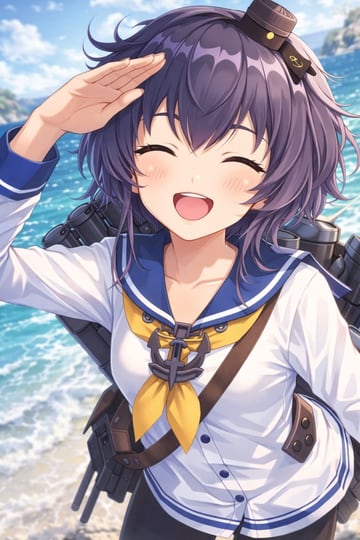
Create a square anime avatar for a design community. Show an original interface designer character with a short cobalt undercut, amber rectangular glasses, one orange stylus tucked behind the ear, confident half-smile, clean cel shading, pale blue background, and a circle-safe shoulder-up crop. Keep the hair shape, glasses, and stylus consistent across variants.
Three explicit identity anchors help the original character remain recognizable as expressions change.
5. Fantasy gaming profile
Create a square gaming avatar for an original forest ranger character. Show a centered chest-up portrait with an angular emerald hood, small brass leaf clasp, dark braided hair, focused expression, soft green rim light, misty forest reduced to broad shapes, and a circle-safe crop. Preserve the hood silhouette and leaf clasp at icon size.
The hood and clasp create a distinctive silhouette without relying on dense costume detail.
6. Product community mascot
Create a square community avatar for a software product. Show an original fox-like paper mascot face built from three simple folded shapes, one orange ear tip, black dot eyes, friendly expression, warm off-white background, flat graphic lighting, thick clean silhouette, and generous circle-safe spacing. Remove tiny fur texture and small accessories.
Simple geometry and one signature accent remain readable in compact community UI.
7. Podcast host portrait
Create a square podcast host avatar. Show a close shoulder-up portrait with a natural listening expression, dark curly hair, one matte-black headphone cup visible, muted burgundy background, soft studio key light, subtle rim light, and a circle-safe crop. Keep microphone hardware outside the face area and preserve clear eye contact.
The headphone cue establishes the medium while the face remains clear and approachable.
8. Faceless expert identity
Create a square profile avatar for a privacy-focused research newsletter. Show an original abstract desk-lamp character with a navy conical shade, one orange switch, a small open-book base, calm forward-facing pose, flat editorial illustration, warm paper background, and a circle-safe centered crop. Keep the lamp silhouette and orange switch consistent.
A symbolic original character gives the publication a stable identity without depicting a person.
9. Customer support community avatar
Create a square support-community avatar for an original helper character. Show a small rounded robot head with a soft rectangular screen face, two calm blue eyes, one orange side tab, welcoming expression, matte white material, pale grey background, diffuse product light, and a circle-safe icon crop. Keep the screen shape and side tab unchanged across status variants.
Two stable shape cues support a reusable set of expressions and status states.
10. Seasonal avatar variation
Create a seasonal square variation of an existing original creator avatar. Preserve the same face shape, short dark hair, thin round glasses, eye-level camera, and shoulder-up circle-safe crop. Change only the overshirt to deep red and add one small winter pine shape in the background, using soft window light and the original warm grey palette.
The prompt separates permanent identity anchors from the two seasonal variables.
Prompt breakdown
- Subject
- A person, original character, mascot, or symbolic identity defined by three stable visual anchors.
- Composition
- A square source image with a shoulder-up or icon crop and enough clearance for a circular mask.
- Lighting
- Simple face or silhouette separation that remains clear at compact display sizes.
- Output
- A profile image reviewed in square, circle, and 48-pixel previews, with permission and context checks completed.
A repeatable avatar review method
Use a crop ladder and an identity-anchor check for every generated version. This creates a consistent evaluation method across realistic portraits, anime avatars, and mascots.
Stage 1: full square
Inspect face shape, anatomy, expression, hair edges, glasses, accessories, clothing, and background. Check the details against the prompt or permitted reference image.
Stage 2: circular crop
Apply a circle mask and check hair, ears, shoulders, hats, and signature accessories near the edge. Increase the source-image margin when the crop removes an identity anchor.
Stage 3: 48-pixel preview
Reduce the avatar to a typical compact UI size. The face, silhouette, and primary accent should remain recognizable. Simplify the background or enlarge the subject when the preview becomes muddy.
Stage 4: anchor comparison
Place variants side by side and verify the same three identity anchors. Change one variable at a time: expression, outfit accent, background color, or seasonal cue. A saved prompt log makes drift easier to spot.
How to customize the template
1. Name the destination and how small the avatar will appear. 2. Choose a person, original character, mascot, or symbolic subject. 3. Write three identity anchors that remain visible in a head-and-shoulders crop. 4. Choose one expression and one camera angle. 5. Specify a simple background and a light direction that separates the face or silhouette. 6. Request a square source with circle-safe spacing. 7. Review full square, circular crop, and 48-pixel preview before creating variants.
For a real-person avatar, image-to-prompt can help describe a permitted reference in terms of crop, lighting, background, and visible features. Keep the final likeness review with the person or team responsible for publication.
Common mistakes and fixes
Make a cool, unique, professional AI avatar with lots of personality and detail.
Create a square professional profile avatar for a SaaS founder. Show a shoulder-up portrait at eye level, calm direct expression, short dark hair, thin round glasses, navy overshirt, warm grey background, soft window key light, natural skin texture, and comfortable circle-safe space around the head and shoulders.
The revised brief defines the destination, expression, identity anchors, camera, light, background, and crop.
- Weak identity anchors: choose three visible features and preserve them across every variant.
- Over-styled face: lower the style strength and describe the features that must remain stable.
- Busy background: reduce the scene to a color, gradient, or one broad context cue.
- Tight source crop: add headroom and side clearance before applying the circle mask.
- Tiny costume detail: strengthen one silhouette cue and one color accent.
- Inconsistent team set: reuse the same camera distance, light direction, background, and headroom.
- Unclear permissions: use reference images and likenesses with appropriate consent.
- Uncontrolled iteration: retain the prompt and change one variable for each new version.
Image2Studio workflow
- Copy the closest example and replace the destination, subject, identity anchors, and style strength.
- Use image-to-prompt when you have a permitted reference image and need a structural description.
- Use Prompt Optimizer to remove conflicting camera, lighting, or style instructions.
- Open the prompt in Image2Studio and check ratio, resolution, and credit cost before generation.
- Generate a square base image, then inspect the circle crop and 48-pixel preview.
- Save the selected image with its prompt and create controlled variants from that stable base.
Pre-publish checklist
- The avatar fits the role and platform context.
- Three identity anchors remain visible and consistent.
- The face or silhouette reads in square, circle, and 48-pixel views.
- The expression and background support the intended tone.
- Hands, glasses, earrings, hair edges, and small accessories have been inspected.
- Real-person reference images and likenesses have appropriate permission.
- Synthetic imagery is disclosed where the publishing context calls for it.
- Team or character-set variants use the same crop, light, and identity rules.
Where to go next
Browse character-design examples for original characters and mascots, use logo-and-branding prompts for identity systems, or explore photorealistic and 3D-render style pages after the identity anchors and crop are stable. Image-to-prompt helps when a permitted reference image needs to become an editable brief.
What should an AI avatar prompt include?
Include the destination, subject, three identity anchors, expression, crop, camera angle, background, lighting, style strength, and circle-safe spacing.
Can I copy these AI avatar prompts?
Yes. Replace the role, subject, identity anchors, expression, colors, and destination with your own requirements, then review every generated result before publishing.
How do I keep an avatar consistent across variants?
Freeze three identity anchors plus the camera distance, crop, and light direction. Change one variable at a time and compare each result with the selected base image.
What source ratio should I use for a profile picture?
A square source gives you flexible placement for square and circular profile masks. Leave comfortable space around hair, ears, shoulders, hats, and signature accessories.
Can I make an avatar from a real person's photo?
Use a reference image only when you have appropriate permission. Review the result for likeness and context, and follow any disclosure requirements that apply to the publishing surface.
Is Image2Studio affiliated with OpenAI?
Image2Studio is an independent prompt and image workflow product. Model names are used only to describe compatible prompt workflows.