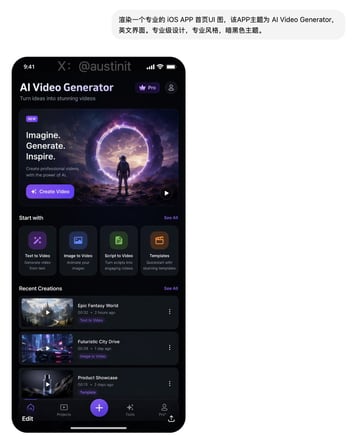
Examples
gpt-image-2
Anime VTuber Minecraft Stream Thumbnail
Social Media Post prompt for youtube thumbnails, ready to edit and generate in Image2Studio.

Prompt
A vibrant anime-style YouTube thumbnail for a livestream gaming broadcast, in a wide 16:9 composition, with a neon purple and pink streamer room. Center the scene on a cute catgirl VTuber sitting at a desk, shown from the waist up, leaning forward energetically with one hand on a computer mouse and the other hand reaching toward the viewer. She has {argument name="hair color" default="light orange-blonde"} bob-cut hair with soft bangs, fluffy brown-and-cream cat ears, and a visible cat tail. Her face is intentionally obscured by a solid rectangular censor block in the center. She wears a black-and-white maid-inspired outfit with a frilly white blouse, black dress bodice, puff sleeves, white ruffles, black ribbon bow, and a gold bell choker. Place a mechanical keyboard with bright RGB lighting on the desk, a glowing gaming mouse, and a streamer microphone on the far left with pink-purple LED lighting. Put 2 cat-themed desk items in the foreground: a plush cat face on the bottom left and a black cat-shaped mug on the bottom right. Behind her is a gaming chair with paw-print details. On the left side, add large bold Korean headline text in thick white block letters with black fill shadows and a glowing purple outline, stacked in 2 lines: {argument name="headline text" default="방송중 대참사"}. Below it, add a smaller yellow comic-style burst caption with black outline reading {argument name="sub text" default="> 크리퍼 실화냐"}. On the right side, show 1 large computer monitor angled inward, displaying a Minecraft-like scene with bright blue sky, green trees, water, and a large green Creeper popping out toward the viewer, outlined dramatically like a sticker cutout. Add starburst effects and neon accents around the monitor to heighten the chaos. Use exaggerated thumbnail aesthetics: ultra-saturated colors, sharp cel shading, thick outlines, glossy highlights, high contrast, dynamic perspective, and a clickworthy streamer-disaster mood.
Prompt structure
- Modelgpt-image-2
- Use casesocial-media-post
- Styleanime, cyberpunk, editorial, luxury
- Aspect ratioFlexible
Best used for
- Use casesocial-media-post
- Styleanime, cyberpunk, editorial, luxury
- Recommended specs1:1, 4:5, 16:9, or 9:16
- ModelGPT Image 2
How to customize
Use this Anime VTuber Minecraft Stream Thumbnail prompt as a base. Replace the subject, product details, environment, lighting, brand colors, and output ratio while keeping the social-media-post intent and anime, cyberpunk, editorial, luxury direction stable.
Editable variables
- SubjectReplace the product, person, scene, interface, or object being generated.
- Use caseKeep or rewrite the destination as social media post, ad creative, cover image, poster, or ecommerce hero.
- FrameChoose 1:1, 4:5, 16:9, or 9:16 based on the final placement.
- Brand cuesAdd colors, materials, props, text-safe space, and the platform where the image will be used.
Recommended specs
Choose the frame for the destination first, then use 1K, 2K, or 4K based on output quality needs. Product images and posters usually benefit from higher resolution.
Pre-generation checklist
- CheckSubject, lighting, composition, and frame are specific enough to review.
- CheckText-safe space is included when the image will carry a headline or ad copy.
- CheckResolution, credit cost, and final destination are checked before generation.
Why this prompt works
Anime VTuber Minecraft Stream Thumbnail works because it starts from the image job, then controls subject, composition, lighting, style, and frame. It is best for social media post while keeping the anime, cyberpunk, editorial, luxury direction stable.
Common questions
- Can I use it directly?Yes. Replace the subject, brand cues, and frame, then generate in Image2Studio.
- Which ratio should I use?Choose 1:1, 4:5, 16:9, or 9:16 based on the destination.
Related prompts
More prompts in this direction
UI & social mockup
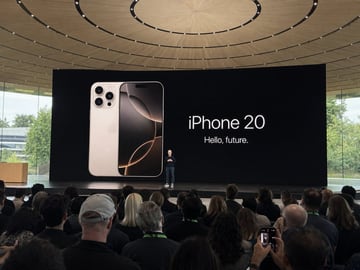
Amateur iPhone Keynote Snapshot
Amateur iPhone photo at Apple Park during the iPhone 20 keynote, Tim Cook presenting on stage. Shot from the crowd at a distance
UI & social mockup
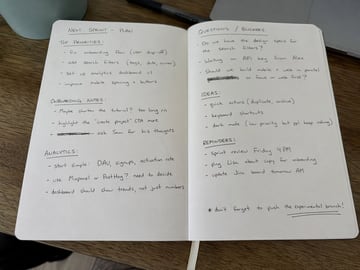
Handwritten Notebook Photo
Amateur photo of an open notebook lying flat, filled with handwritten notes in black ballpoint pen. The handwriting is casual and slightly messy, like personnal notes, natural imperfections, crossed out words, underlined headings. Shot from slightly above, natural daylight from a window, no flash. Casual desk setting, shot on iPhone
UI & social mockup
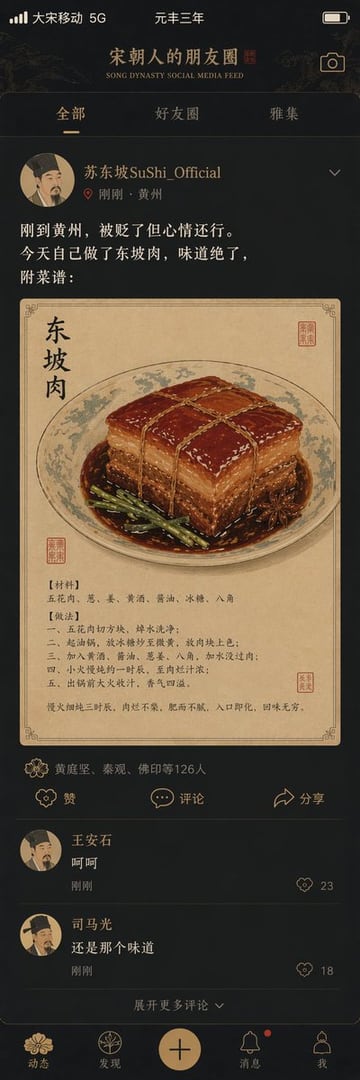
Song Dynasty Social Media Feed
"宋朝人的朋友圈"/"SONG DYNASTY SOCIAL MEDIA FEED",古今穿越幽默融合界面设计风格,画面模拟手机社交媒体界面,但内容全部是宋朝场景头像是宋代文人画像,用户名"苏东坡SuShi_Official",发布内容"刚到黄州,被贬了但心情还行。今天自己做了东坡肉,味道绝了,附菜谱:",配图为工笔画风格的东坡肉特写,点赞列表"黄庭坚、秦观、佛印等126人",评论区"王安石:呵呵""司马光:还是那个味道",界面元素如点赞图标用宋代花纹替代,状态栏显示"大宋移动 5G"和"元丰三年",配色为手机深色模式搭配宋代雅致色调,历史与社交媒体的趣味碰撞杰作
UI & social mockup
Multi-Platform Content Screenshots
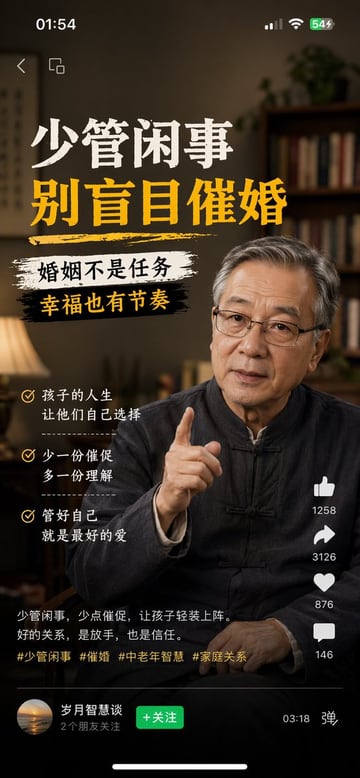
1、生成视频号内容截图,主题:中老年不要盲目催婚,iPhone尺寸 2、生成抖音内容截图,主题:跟上AI浪潮9.9包教会,iPhone尺寸 3、生成小红书内容截图,主题:精致女孩背后都有网贷,iPhone尺寸 4、生成快手内容截图:主题:直播离婚预告,iPhone尺寸
UI & social mockup
Liu Yifei Douyin Livestream Screenshot
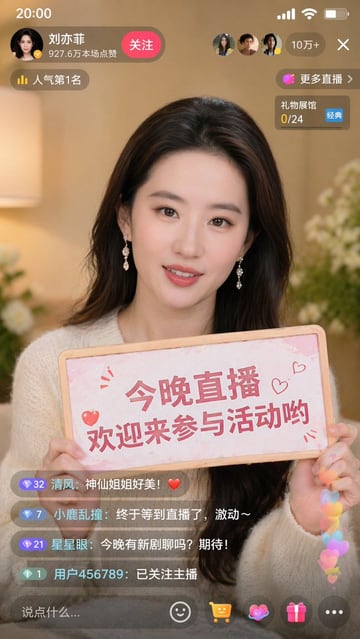
9:16 的图片比例,生成一张抖音直播的截图,里面是 刘亦菲 在直播,刘亦菲 手里拿着牌子,牌子里写着 今晚直播,欢迎来参亦菲畅聊!