Image2Studio
Prompts

gpt-image-2

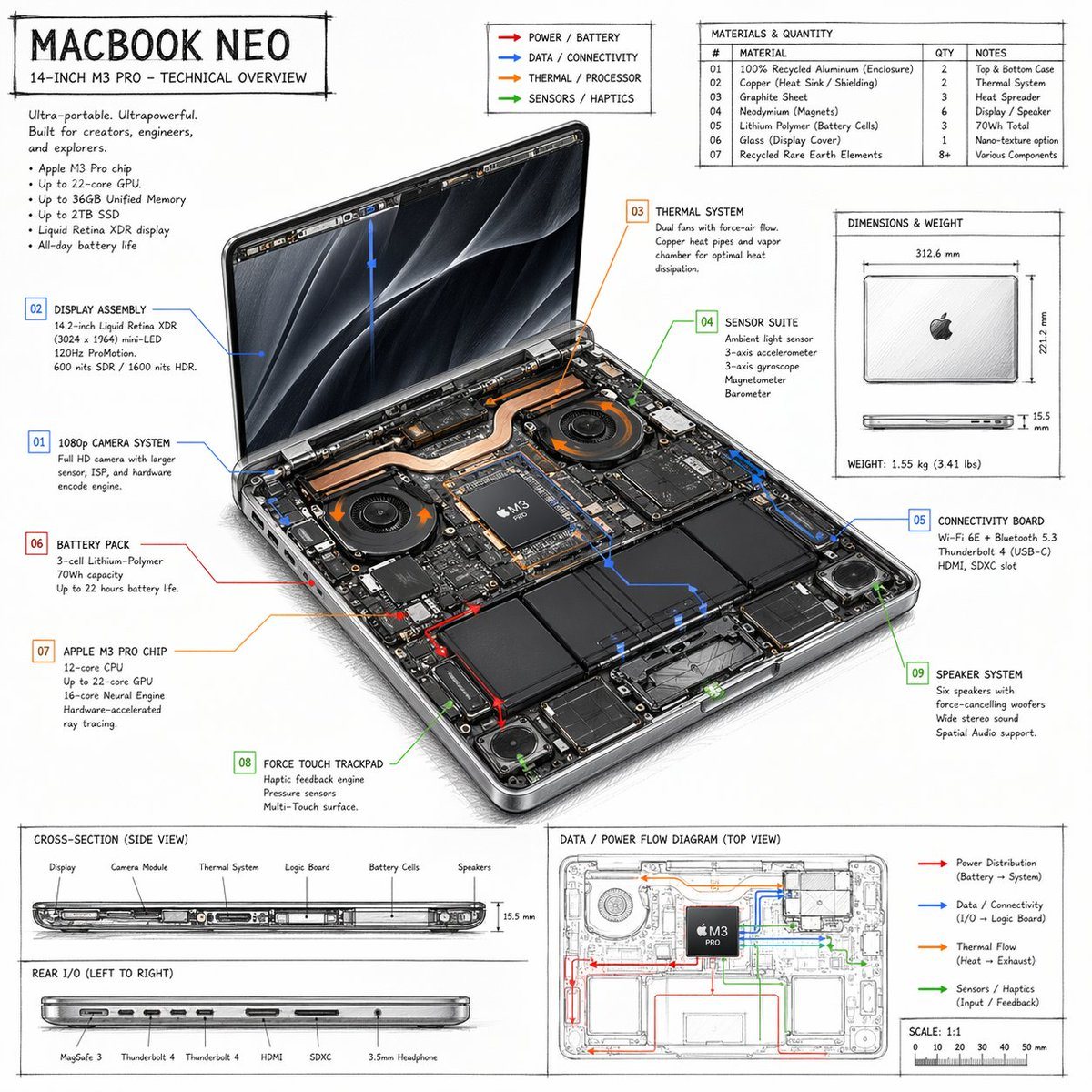
Laptop Technical Overview Infographic

A detailed, hand-drawn style technical spec sheet for a laptop, featuring internal component callouts, material tables, and flow diagrams.

A detailed, hand-drawn style technical spec sheet for a laptop, featuring internal component callouts, material tables, and flow diagrams.
Prompt

{ "type": "technical overview infographic", "style": "{argument name=\"visual style\" default=\"hand-drawn technical sketch with clean typography\"}", "product": { "name": "{argument name=\"product name\" default=\"MACBOOK NEO\"}", "subtitle": "14-INCH {argument name=\"processor model\" default=\"M3 PRO\"} - TECHNICAL OVERVIEW" }, "layout": { "centerpiece": { "description": "isometric view of an opened laptop revealing internal hardware components like dual fans, copper heat pipes, battery cells, and logic board", "callouts_count": 9, "callout_labels": [ "01 1080p CAMERA SYSTEM", "02 DISPLAY ASSEMBLY", "03 THERMAL SYSTEM", "04 SENSOR SUITE", "05 CONNECTIVITY BOARD", "06 BATTERY PACK", "07 {argument name=\"main component\" default=\"APPLE M3 PRO CHIP\"}", "08 FORCE TOUCH TRACKPAD", "09 SPEAKER SYSTEM" ] }, "sections": [ { "title": "Header Text", "position": "top-left", "content": "Marketing blurb and 5-bullet specification list" }, { "title": "Legend", "position": "top-center", "content": "4 color-coded arrows indicating {argument name=\"accent colors\" default=\"red, blue, orange, green\"} flow lines for Power, Data, Thermal, and Sensors" }, { "title": "MATERIALS & QUANTITY", "position": "top-right", "type": "table", "rows_count": 7, "columns": ["#", "MATERIAL", "QTY", "NOTES"] }, { "title": "DIMENSIONS & WEIGHT", "position": "mid-right", "content": "Top and side views of closed laptop with measurements" }, { "title": "CROSS-SECTION (SIDE VIEW)", "position": "bottom-left (top half)", "content": "Side profile showing internal component layout with 6 labels" }, { "title": "REAR I/O (LEFT TO RIGHT)", "position": "bottom-left (bottom half)", "content": "Side profile showing 6 ports" }, { "title": "DATA / POWER FLOW DIAGRAM (TOP VIEW)", "position": "bottom-right", "content": "Wireframe top-down view with colored flow lines, legend, and scale bar" } ] } }

Prompt structure
  • Modelgpt-image-2
  • Use casesocial-media-post
  • Styleeditorial, photorealistic, 3d-render, minimal
  • Aspect ratioFlexible
Best used for
  • Use casesocial-media-post
  • Styleeditorial, photorealistic, 3d-render, minimal
  • Recommended specs1:1, 4:5, 16:9, or 9:16
  • ModelGPT Image 2
How to customize

Use this Laptop Technical Overview Infographic prompt as a base. Replace the subject, product details, environment, lighting, brand colors, and output ratio while keeping the social-media-post intent and editorial, photorealistic, 3d-render, minimal direction stable.

Editable variables
  • SubjectReplace the product, person, scene, interface, or object being generated.
  • Use caseKeep or rewrite the destination as social media post, ad creative, cover image, poster, or ecommerce hero.
  • FrameChoose 1:1, 4:5, 16:9, or 9:16 based on the final placement.
  • Brand cuesAdd colors, materials, props, text-safe space, and the platform where the image will be used.
Recommended specs

Choose the frame for the destination first, then use 1K, 2K, or 4K based on output quality needs. Product images and posters usually benefit from higher resolution.

Pre-generation checklist
  • CheckSubject, lighting, composition, and frame are specific enough to review.
  • CheckText-safe space is included when the image will carry a headline or ad copy.
  • CheckResolution, credit cost, and final destination are checked before generation.
Why this prompt works

Laptop Technical Overview Infographic works because it starts from the image job, then controls subject, composition, lighting, style, and frame. It is best for social media post while keeping the editorial, photorealistic, 3d-render, minimal direction stable.

Common questions
  • Can I use it directly?Yes. Replace the subject, brand cues, and frame, then generate in Image2Studio.
  • Which ratio should I use?Choose 1:1, 4:5, 16:9, or 9:16 based on the destination.