
Image2Studio
Examples

gpt-image-2

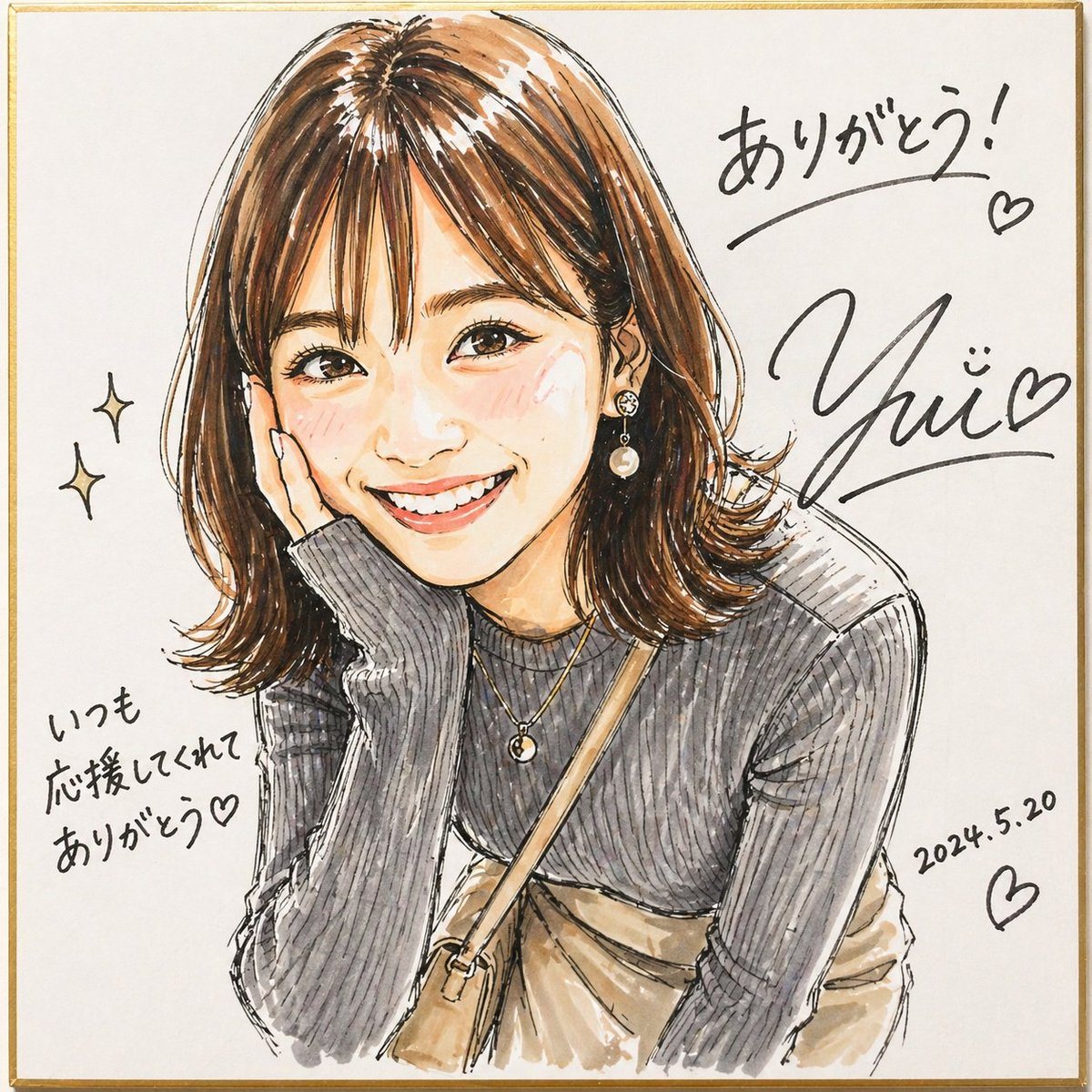
Signed Marker Portrait on Shikishi

This generates a lively signed marker-style portrait on a square shikishi board, useful for fan-art autographs, commemorative illustration posts, and personalized thank-you visuals.

This generates a lively signed marker-style portrait on a square shikishi board, useful for fan-art autographs, commemorative illustration posts, and personalized thank-you visuals.
Prompt

A lively hand-drawn fashion portrait in a changed illustration style, made to look like a signed fan-art sketch drawn with markers on a square white shikishi board with a thin gold border. Show a stylish young woman from about the waist up, leaning slightly forward with one elbow resting up near her face in a casual, friendly pose. Her face area is covered by a simple rectangular censor block in a muted beige tone. She has shoulder-length medium brown hair with warm highlights, soft volume, side-swept bangs, and flipped-out ends. Render the art with expressive black ink outlines, visible marker strokes, watercolor-like blending, sketchy hatching, and an energetic, vivid handmade feel. She wears a fitted dark gray ribbed long-sleeve knit top with subtle puffed shoulders, layered delicate gold necklaces, a dangling pearl earring, a beige crossbody bag strap running diagonally across her chest, and a light beige skirt or dress visible at the waist. Leave plenty of clean white background around the figure. Add 2 small sparkle doodles on the left side. Add handwritten Japanese thank-you messages and signature-style black ink writing around the portrait: at upper right write {argument name="top message" default="ありがとう!"} with an underline and a small heart, beneath it place a large stylized autograph reading {argument name="signature name" default="Yui"} with a smiling face mark and a heart, at lower left write {argument name="side message" default="いつも応援してくれてありがとう♡"}, and at lower right write the date {argument name="date" default="2024.5.20"} with another heart. The overall image should feel warm, personal, lively, and like a celebratory signed illustration on a square autograph board.

Prompt structure
  • Modelgpt-image-2
  • Use caseavatar
  • Styleminimal, watercolor, luxury, 3d-render
  • Aspect ratioFlexible
Best used for
  • Use caseavatar
  • Styleminimal, watercolor, luxury, 3d-render
  • Recommended specs1:1, 4:5, 16:9, or 9:16
  • ModelGPT Image 2
How to customize

Use this Signed Marker Portrait on Shikishi prompt as a base. Replace the subject, product details, environment, lighting, brand colors, and output ratio while keeping the avatar intent and minimal, watercolor, luxury, 3d-render direction stable.

Editable variables
  • SubjectReplace the product, person, scene, interface, or object being generated.
  • Use caseKeep or rewrite the destination as avatar, ad creative, cover image, poster, or ecommerce hero.
  • FrameChoose 1:1, 4:5, 16:9, or 9:16 based on the final placement.
  • Brand cuesAdd colors, materials, props, text-safe space, and the platform where the image will be used.
Recommended specs

Choose the frame for the destination first, then use 1K, 2K, or 4K based on output quality needs. Product images and posters usually benefit from higher resolution.

Pre-generation checklist
  • CheckSubject, lighting, composition, and frame are specific enough to review.
  • CheckText-safe space is included when the image will carry a headline or ad copy.
  • CheckResolution, credit cost, and final destination are checked before generation.
Why this prompt works

Signed Marker Portrait on Shikishi works because it starts from the image job, then controls subject, composition, lighting, style, and frame. It is best for avatar while keeping the minimal, watercolor, luxury, 3d-render direction stable.

Common questions
  • Can I use it directly?Yes. Replace the subject, brand cues, and frame, then generate in Image2Studio.
  • Which ratio should I use?Choose 1:1, 4:5, 16:9, or 9:16 based on the destination.