
Image2Studio
Examples

gpt-image-2

False-Color Garden Portrait

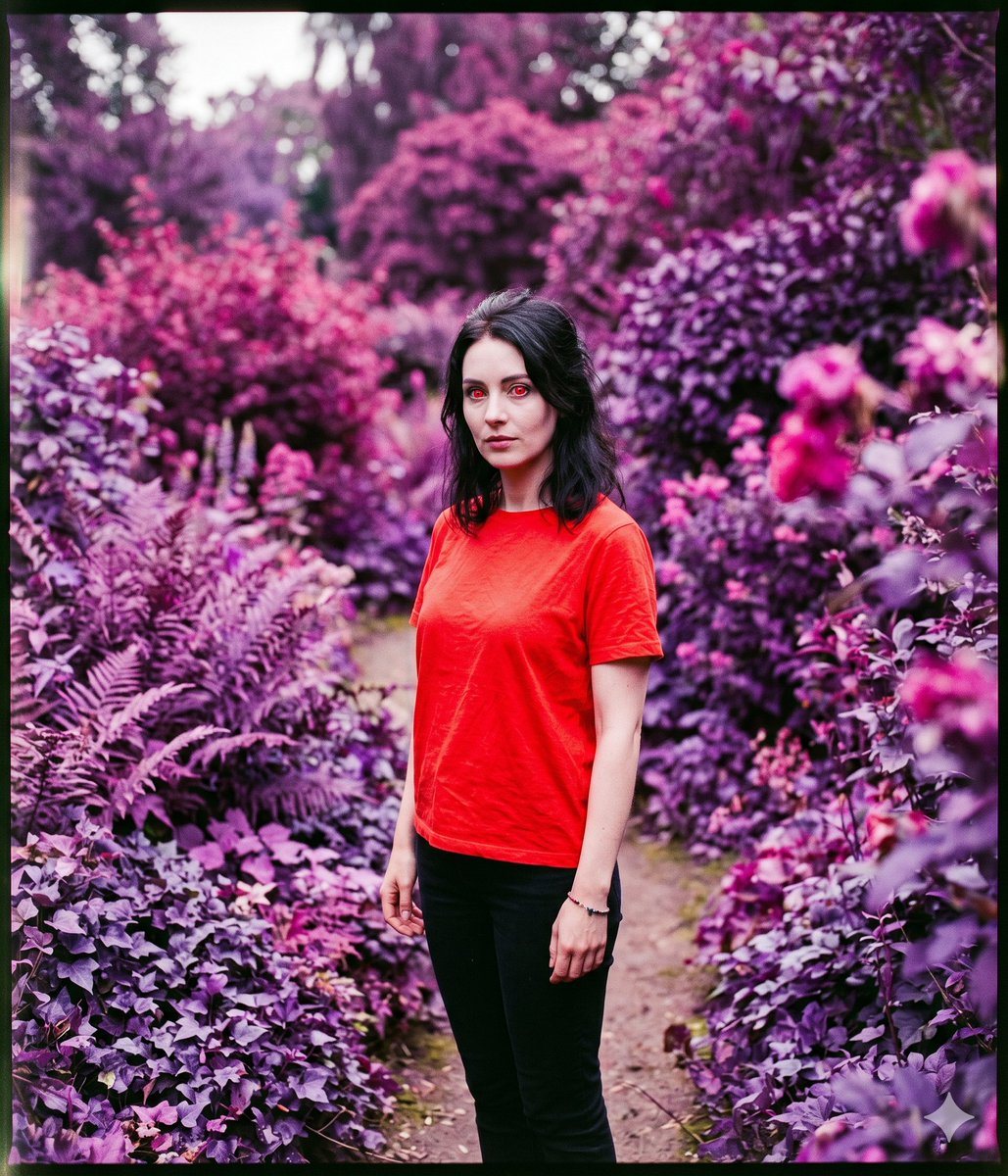
This prompt generates a surreal medium-format portrait of a woman in a vivid red shirt standing in a lush garden transformed into magenta and purple false-color film tones, ideal for cinematic editorial or experimental photography.

This prompt generates a surreal medium-format portrait of a woman in a vivid red shirt standing in a lush garden transformed into magenta and purple false-color film tones, ideal for cinematic editorial or experimental photography.
Prompt

A surreal medium-format portrait of a woman standing on a narrow garden path surrounded by extremely dense foliage, photographed in a dreamlike false-color film look. She wears a plain bright saturated {argument name="shirt color" default="red"} crew-neck T-shirt and dark black fitted pants, with shoulder-length dark hair that is slightly tousled and parted off-center. Her pose is relaxed and natural, arms hanging loosely at her sides, body facing the camera with a subtle turn, framed from about mid-thigh upward. The setting is an overgrown botanical garden packed with ferns, ivy, shrubs, and flowering plants on both sides of the path; all vegetation is dramatically color-shifted from green into vivid magenta, lavender, pink, and deep purple, creating an unnatural LomoChrome Purple XR aesthetic. Keep the subject's shirt intensely saturated and realistic against the transformed environment for strong visual contrast. Use soft overcast daylight, shallow to moderate depth of field, and medium format rendering with a {argument name="camera" default="Mamiya RB67"} feel, shot with a {argument name="lens" default="90mm lens"} at {argument name="aperture" default="f/5.6"}. Include organic film grain, slight edge halation, gentle vignette, soft bloom in highlights, and subtle vintage film border edges. Composition should be vertical in a {argument name="aspect ratio" default="6:7"} frame, with the subject centered slightly left of the path, foreground and background foliage softly blurred while remaining lush and detailed, producing an eerie, romantic, otherworldly portrait.

Prompt structure
  • Modelgpt-image-2
  • Use caseavatar
  • Stylephotorealistic, cinematic, editorial
  • Aspect ratioFlexible
Best used for
  • Use caseavatar
  • Stylephotorealistic, cinematic, editorial
  • Recommended specs1:1, 4:5, 16:9, or 9:16
  • ModelGPT Image 2
How to customize

Use this False-Color Garden Portrait prompt as a base. Replace the subject, product details, environment, lighting, brand colors, and output ratio while keeping the avatar intent and photorealistic, cinematic, editorial direction stable.

Editable variables
  • SubjectReplace the product, person, scene, interface, or object being generated.
  • Use caseKeep or rewrite the destination as avatar, ad creative, cover image, poster, or ecommerce hero.
  • FrameChoose 1:1, 4:5, 16:9, or 9:16 based on the final placement.
  • Brand cuesAdd colors, materials, props, text-safe space, and the platform where the image will be used.
Recommended specs

Choose the frame for the destination first, then use 1K, 2K, or 4K based on output quality needs. Product images and posters usually benefit from higher resolution.

Pre-generation checklist
  • CheckSubject, lighting, composition, and frame are specific enough to review.
  • CheckText-safe space is included when the image will carry a headline or ad copy.
  • CheckResolution, credit cost, and final destination are checked before generation.
Why this prompt works

False-Color Garden Portrait works because it starts from the image job, then controls subject, composition, lighting, style, and frame. It is best for avatar while keeping the photorealistic, cinematic, editorial direction stable.

Common questions
  • Can I use it directly?Yes. Replace the subject, brand cues, and frame, then generate in Image2Studio.
  • Which ratio should I use?Choose 1:1, 4:5, 16:9, or 9:16 based on the destination.