Image2Studio
Examples

gpt-image-2

Realistic Yet Whimsical Mobile Chat Screenshot In A WhatsApp-like Interf

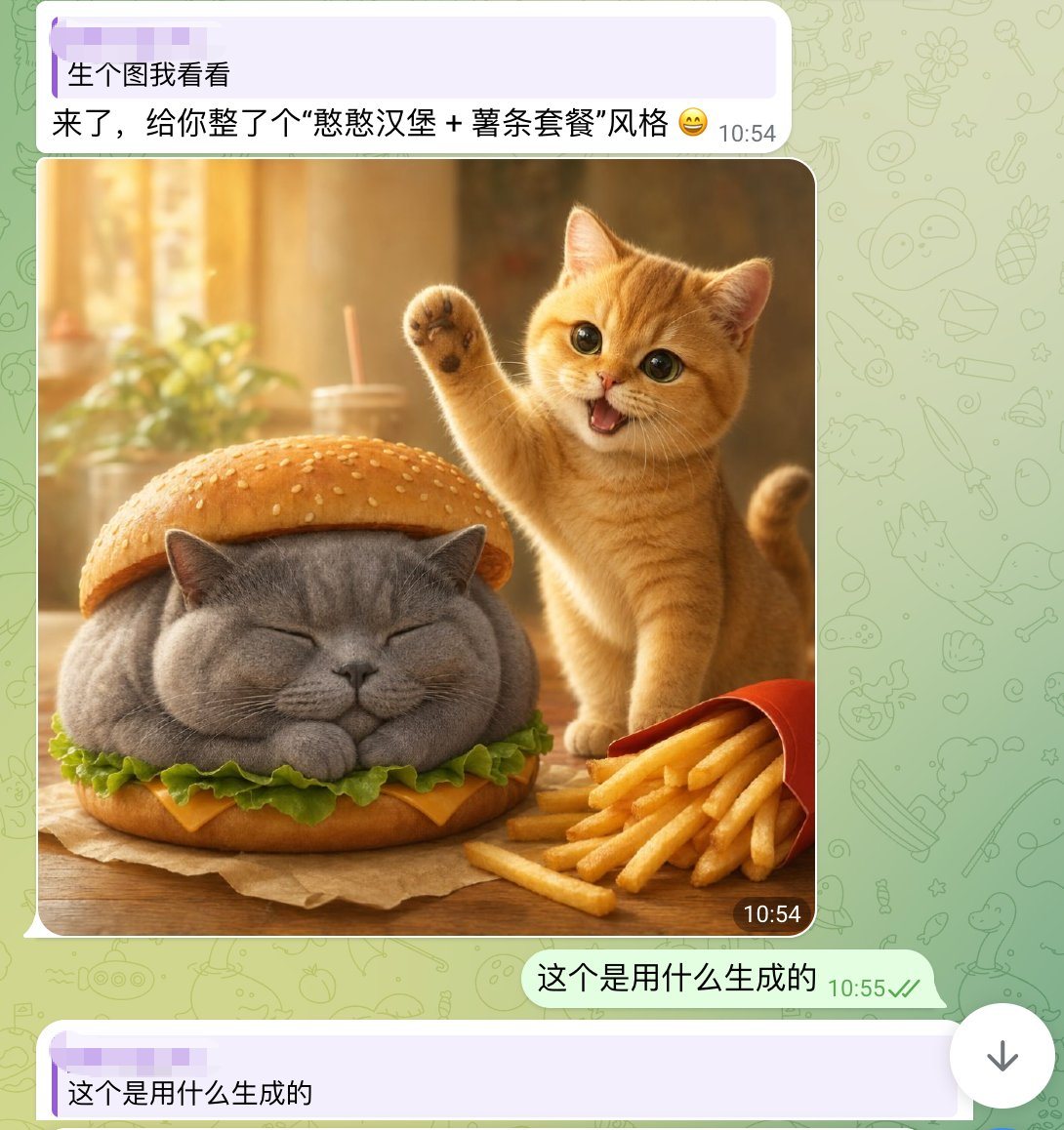
A realistic yet whimsical mobile chat screenshot in a WhatsApp-like interface, shown full screen. The background is pale green with faint doodle icons. At the top is a light purple incomi...

A realistic yet whimsical mobile chat screenshot in a WhatsApp-like interface, shown full screen. The background is pale green with faint doodle icons. At the top is a light purple incomi...
Prompt

A realistic yet whimsical mobile chat screenshot in a WhatsApp-like interface, shown full screen. The background is pale green with faint doodle icons. At the top is a light purple incoming message bubble with two lines of Chinese text and a timestamp on the right, reading: "生个图我看看" on the first line and "来了,给你整了个“憨憨汉堡 + 薯条套餐”风格 😄" on the second line. Below it is a large rounded-corner image inside the chat. The generated image shows a cozy warm-lit tabletop food scene: a chubby gray British shorthair cat is styled as a hamburger, sitting with eyes closed and paws tucked under, placed between a sesame bun top and bottom bun, with green lettuce and a slice of yellow cheese visible around its body. To the right of the burger-cat is a small orange tabby kitten, cheerful and energetic, standing upright with one front paw raised in a waving pose, mouth open in a happy smile, large glossy eyes looking toward the viewer. In the lower right foreground is a red fries carton tipped slightly with golden French fries spilling out. The table is wooden with a sheet of brown parchment under the burger-cat. The background of the photo is softly blurred, golden and sunlit, with a drink cup and straw and a leafy plant in bokeh. Put a small dark rounded timestamp label "10:54" at the bottom-right corner of the image. Under the image, add an outgoing pale green message bubble aligned right with Chinese text: "这个是用什么生成的" and a gray-green timestamp "10:55" with two check marks. At the very bottom, show another light purple incoming bubble beginning with the same text "这个是用什么生成的". Keep the overall composition exactly like a smartphone screenshot of a chat conversation, mixing cute photorealistic animal food art with clean messaging app UI.

Prompt structure
  • Modelgpt-image-2
  • Use caseapp-ui-mockup
  • Stylephotorealistic, minimal
  • Aspect ratioFlexible
Best used for
  • Use caseapp-ui-mockup
  • Stylephotorealistic, minimal
  • Recommended specs1:1, 4:5, 16:9, or 9:16
  • ModelGPT Image 2
How to customize

Use this Realistic Yet Whimsical Mobile Chat Screenshot In A WhatsApp-like Interf prompt as a base. Replace the subject, product details, environment, lighting, brand colors, and output ratio while keeping the app-ui-mockup intent and photorealistic, minimal direction stable.

Editable variables
  • SubjectReplace the product, person, scene, interface, or object being generated.
  • Use caseKeep or rewrite the destination as app ui mockup, ad creative, cover image, poster, or ecommerce hero.
  • FrameChoose 1:1, 4:5, 16:9, or 9:16 based on the final placement.
  • Brand cuesAdd colors, materials, props, text-safe space, and the platform where the image will be used.
Recommended specs

Choose the frame for the destination first, then use 1K, 2K, or 4K based on output quality needs. Product images and posters usually benefit from higher resolution.

Pre-generation checklist
  • CheckSubject, lighting, composition, and frame are specific enough to review.
  • CheckText-safe space is included when the image will carry a headline or ad copy.
  • CheckResolution, credit cost, and final destination are checked before generation.
Why this prompt works

Realistic Yet Whimsical Mobile Chat Screenshot In A WhatsApp-like Interf works because it starts from the image job, then controls subject, composition, lighting, style, and frame. It is best for app ui mockup while keeping the photorealistic, minimal direction stable.

Common questions
  • Can I use it directly?Yes. Replace the subject, brand cues, and frame, then generate in Image2Studio.
  • Which ratio should I use?Choose 1:1, 4:5, 16:9, or 9:16 based on the destination.