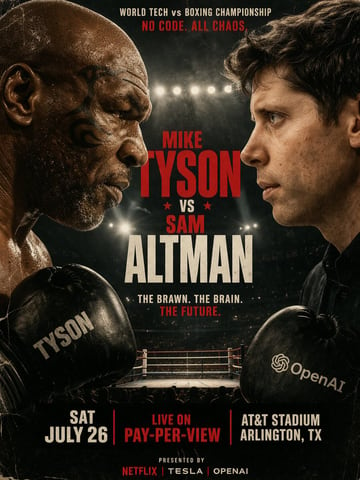

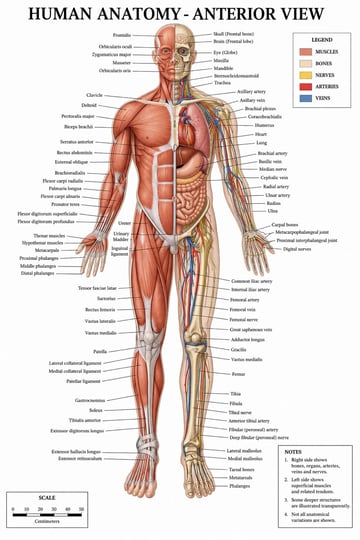
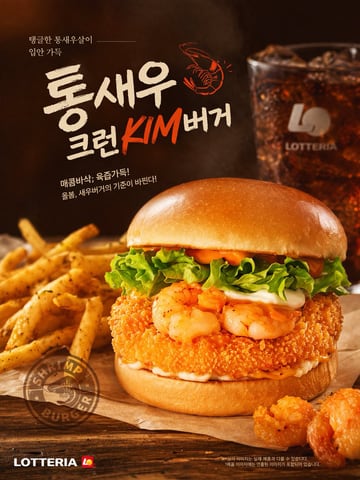
Text rendering constraints in AI image prompts show up whenever the image needs a title area, blank label, UI copy region, sign surface, price strip, or caption panel that remains readable after generation. The practical constraint is simple: image models can create believable layouts, but exact typography still needs review and often belongs in a final design pass.
For Image2Studio, the useful pattern is to ask for the image structure first: clean surfaces, strong contrast, generous spacing, and a named text-safe area. Then add the final headline, brand name, price, or UI copy after generation when the words must be correct. That keeps posters, product labels, UI mockups, signage, and social cards usable.
Quick answer
A good prompt handles text rendering constraints before style: it names where the headline goes, which label stays blank, how much contrast the copy area needs, and what crop the image will use. Use generated words only as optional placeholders, then add final typography after generation.
What text rendering constraints mean
- Exact text is harder than visual layout, especially when the words are small.
- Generated text may look plausible while still being misspelled.
- Busy textures behind copy reduce readability even if the composition is attractive.
- UI screens, packaging labels, posters, and signs need different safe areas.
- A good prompt says where text will go before it describes decorative style.
Copyable prompt template
Create an image for [destination] with [subject], [composition], [text-safe zone], [label or signage surface], [background contrast], [lighting], [final typography plan], and [ratio]. Use short generated labels only if they are optional; reserve clean areas for final copy that must be accurate.
Example 1: Poster title-safe area
Create a gallery poster visual for a ceramic exhibition. Place one handmade vase in the lower third, leave the upper half as a clean title-safe plaster wall, use soft side light, muted paper texture, vertical 4:5 crop, and no long generated text.
It asks for a poster layout and title zone instead of exact typography.
Example 2: Product label surface
Create a packaging concept for a honey jar. Show the jar front-facing on warm paper, keep the cream label blank and flat, make the glass edge and honey color clear, reserve the label for final typography, and use a 1:1 product crop.
It protects the label as an editable surface.
Example 3: Social quote card
Create a social quote card background for a focus tip. Put a calm desk scene on the left, leave a smooth paper panel on the right for final text, use soft daylight, low texture behind the copy area, and a 4:5 mobile crop.
It creates contrast and space for readable text.
Example 4: Storefront signage
Create a small bakery storefront mockup at dusk. Show a blank rectangular sign above the door, warm window glow, simple street context, clean sign surface, no generated shop name, and a 16:9 frame.
It makes the sign usable without trusting generated letters.
Example 5: UI card area
Create a mobile app onboarding mockup. Show a phone frame with one large blank notification card, simple icon placeholders, generous spacing, no tiny body copy, warm neutral UI surfaces, and a 4:5 preview crop.
It keeps UI text editable and avoids tiny unreadable copy.
Example 6: Price-safe product ad
Create a sparkling drink can ad on ice. Place the can in the center, keep a clean bottom strip for final price and CTA, use bright summer light, high contrast product edges, simple background, and a 4:5 ecommerce social crop.
It reserves the promotional copy area before style details.
Build the prompt like a production brief
1. Decide whether text must be exact
If the words are brand names, prices, legal notes, UI copy, product labels, or headline text, plan to add them after generation. If the words are tiny placeholder marks that only need to feel like labels, the model can create them, but they should not carry meaning.
2. Reserve the copy zone early
Put the text-safe area in the first sentence. A prompt that says "beautiful poster" first and "with title space" last often produces a scene that is too busy for typography. Use phrases like "blank label surface," "title-safe upper third," "clean bottom price strip," or "smooth panel for final copy."
3. Keep the background behind text quiet
Readable text needs contrast and calm texture. Avoid heavy patterns, specular highlights, cluttered props, and faces behind copy areas. If the generated image looks impressive but forces the title onto a noisy background, it is not production-ready.
4. Use short labels only when optional
Short labels such as "Step 1," "New," or "AI" are safer than paragraphs, but they still need review. For UI mockups and infographics, ask for label zones and simple icon placeholders. Add the exact words later.
5. Review at the real size
Test the generated image inside the final container: poster preview, product card, mobile feed, ad creative, slide, or app screen. A title-safe prompt succeeds only when the final text can be added without covering the subject.
Common mistakes and fixes
Make a poster with the words typed perfectly, lots of details, beautiful background.
Create a gallery poster visual for a ceramic exhibition. Place one handmade vase in the lower third, leave the upper half as a clean title-safe plaster wall, use soft side light, muted paper texture, vertical 4:5 crop, and no long generated text.
The rewrite separates image generation from final typography and protects the area where the title will go.
- Mistake: asking for a long exact headline inside the image. Fix it by reserving a title-safe area.
- Mistake: putting text over a busy texture. Fix it with a clean panel, wall, label, card, or bottom strip.
- Mistake: treating UI body copy as visual decoration. Fix it with large modules and placeholder cards.
- Mistake: accepting plausible but wrong letters. Fix it by reviewing at real size and adding final typography separately.
Review checklist
- The prompt names the destination before style.
- Exact words are added after generation when accuracy matters.
- The text-safe area is large enough for the final title, price, label, or UI copy.
- The subject remains clear after typography is placed.
- Background contrast supports readability.
- The crop matches the channel where the image will appear.
Where to go next
Use this guide as the method layer, then open related prompt topics for concrete examples. Poster prompts are useful for title-safe composition, UI mockup prompts are useful for cards and modules, infographic prompts are useful for section hierarchy, image-to-prompt helps turn a reference layout into a brief, and the prompt optimizer helps clean the final prompt before generation.
Why does AI-generated text often fail inside images?
Image models are better at visual structure than exact typography. Small letters, long phrases, dense UI copy, and brand names can become distorted or misspelled, so important text should usually be added after generation.
Should I ask GPT Image 2 to render the final headline?
Only when the headline is very short and non-critical. For production posters, labels, prices, UI copy, or campaign headlines, reserve a text-safe area and add final typography after generation.
What is a text-safe area in an AI image prompt?
A text-safe area is a clean, low-texture part of the composition reserved for final copy. It can be a blank wall, label, sign, card, top band, bottom strip, or smooth panel.
Can image-to-prompt help with text-safe layouts?
Yes. Use image-to-prompt when a reference image already has a useful poster, label, UI card, or sign layout. Extract the visible structure, then rewrite it with a clean text-safe area and final typography plan.