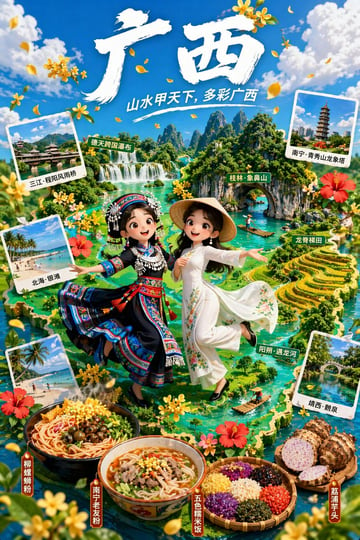



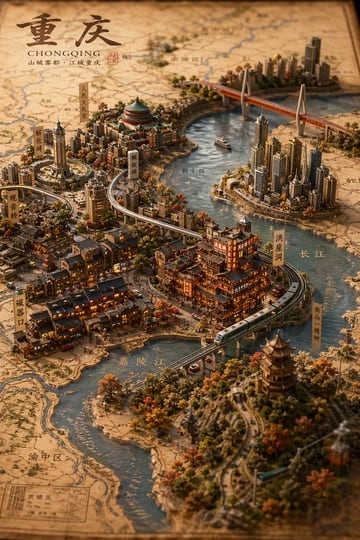
An isometric AI image prompt describes a scene from a raised 3/4 top-down angle so objects keep consistent scale, depth, and spatial relationships. It works best for product explainers, workflow diagrams, app visuals, icon systems, miniature workspaces, and educational scenes where the viewer needs to understand how parts fit together.
For Image2Studio, an isometric prompt should behave like a compact production brief. It should name the image job, camera angle, object hierarchy, materials, lighting, brand cues, and output crop before style words take over. The goal is not to ask for "cool 3D." The goal is to make the result readable, editable, and useful in the page or slide where it will appear.
Quick answer
Use an isometric AI image prompt when the image needs to explain a system, not just decorate a page. Start with the destination, then specify a 3/4 top-down axonometric camera, the primary object, supporting objects, material system, light direction, and final aspect ratio.
What This Guide Helps You Decide
- The image job: product feature callout, SaaS workflow diagram, icon set, miniature scene, or educational explainer.
- The camera: true 3/4 top-down axonometric view, not a front-facing 3D render.
- The hierarchy: which object is primary, which items support it, and which details can be removed.
- The material system: paper, clay, matte plastic, glass, metal, soft UI surfaces, or brand-colored blocks.
- The output container: landing page hero, feature section, slide, social post, help center graphic, or icon sheet.
Copyable Prompt Template
Create an isometric image for [destination]. Show [main subject] from a 3/4 top-down axonometric angle with [supporting objects], [object hierarchy], [materials], [lighting], [brand color cues], [text-safe area if needed], and [output ratio].
Example 1: SaaS workflow diagram
Create an isometric image for a SaaS onboarding page. Show three connected workflow stations from a 3/4 top-down axonometric angle: import data, review AI suggestions, and publish the final image. Use warm paper surfaces, moss green connector lines, soft shadows, clear object hierarchy, and a 16:9 landing-page crop.
It names the destination, keeps the camera stable, and turns an abstract workflow into readable objects.
Example 2: Product feature callout
Create an isometric product explainer for a compact desk lamp. Place the lamp in the center, add three small callout blocks for adjustable neck, warm light, and USB-C charging, use matte clay materials, warm neutral background, soft top-left lighting, and a 4:5 ecommerce feature crop.
It keeps the product primary while using small supporting blocks to explain features.
Example 3: AI image studio workspace
Create an isometric miniature workspace for an AI image studio. Show a prompt card, image preview tile, ratio selector, credit coin, and save folder on a clean desk plane, all from a consistent 3/4 top-down angle, black ink and warm paper palette, subtle orange accents, and 16:9 frame.
It maps Image2Studio concepts into visible objects without relying on unreadable generated text.
Example 4: Icon system sheet
Create a 1:1 isometric icon sheet with six icons for image generation actions: prompt, style, ratio, credits, generated image, and saved work. Use consistent rounded bases, identical 3/4 top-down angle, matte black and ivory material, small orange accent details, soft shadow, and no text labels.
It controls consistency across the icon set, which is usually where isometric prompts fail.
Example 5: Ecommerce logistics explainer
Create an isometric logistics explainer for an ecommerce product page. Show a product box moving through three stations: packed, shipped, and delivered. Use small warehouse surfaces, simple arrows, readable spacing, muted brand colors, soft daylight, and a wide 16:9 crop with room for headline text.
It makes process order and safe text space explicit before the model fills the scene.
Example 6: Learning diagram
Create an isometric educational diagram for prompt engineering basics. Show a central prompt card connected to four small islands: subject, composition, lighting, and output ratio. Use paper-card material, simple diagram lines, calm neutral background, clear hierarchy, and a 4:5 social post crop.
It turns a teaching concept into spatial structure and keeps each part visually separate.
Isometric vs 3D Render
Isometric and 3D render prompts overlap, but they are not the same job. A 3D render prompt focuses on object geometry, material, realism level, and lighting. An isometric prompt focuses on a stable raised camera angle and spatial relationships. If the image needs to explain a workflow or system, use isometric. If the image needs to show one constructed object, use 3D render.
| Prompt choice | Use it when | Prompt control | | --- | --- | --- | | Isometric | The viewer must understand a system, workflow, object set, or miniature scene. | 3/4 top-down angle, hierarchy, spacing, connectors, and crop. | | 3D render | The viewer must inspect one object, icon, material, or product concept. | Geometry, material, camera distance, reflections, and surface finish. | | Infographic | The viewer must read a sequence, comparison, or labeled explanation. | Section count, label zones, reading order, and text-safe margins. |
Build the Prompt Like a Working Brief
1. Choose the image job first
Before writing style, decide whether the output is a product explainer, app workflow, icon set, miniature scene, or educational diagram. A broad prompt like "make an isometric illustration" gives the model no reason to prioritize one object over another.
2. Lock the camera
Use phrases like "3/4 top-down axonometric angle" or "consistent raised isometric camera." Avoid mixing front view, cinematic close-up, and isometric in the same prompt. If the camera is unstable, the image will feel like a random 3D render instead of an isometric explainer.
3. Control object hierarchy
Name the primary object first, then the supporting objects. For a workflow, give each station a role. For an icon sheet, require consistent bases and scale. For a product explainer, keep the product larger than feature callouts.
4. Keep materials consistent
Choose one material system: paper, clay, matte plastic, metal, glass, or soft UI panels. Mixing too many materials makes the scene noisy and weakens the isometric effect. Material consistency is also what lets a cluster of images feel like one brand system.
5. Reserve readable space
If the final asset needs a headline, callout, or UI label, reserve space instead of asking the model to render long text. AI-generated text can be unreliable, so the prompt should create a clean area where final typography can be added later.
Common Mistakes and Fixes
Make a cool isometric 3D diagram of my app with lots of icons and text, futuristic, detailed, beautiful.
Create an isometric app workflow diagram for a SaaS onboarding page. Show three connected stations from a 3/4 top-down axonometric angle: import data, review AI suggestions, publish final image. Use matte paper surfaces, moss green connector lines, soft shadows, clear spacing, and a 16:9 crop with headline-safe space.
The rewrite gives the image a destination, camera, object hierarchy, material system, and crop.
- Mistake: asking for "isometric" but not specifying the camera. Fix it by adding a 3/4 top-down axonometric angle.
- Mistake: adding too many objects. Fix it by naming one primary object and three to five supporting items.
- Mistake: mixing glossy 3D, flat vector, and clay in one prompt. Fix it by choosing one material system.
- Mistake: asking for readable paragraphs inside the image. Fix it by reserving text-safe zones.
- Mistake: using isometric for a single product photo. Fix it by switching to product photography or 3D render when inspection matters more than system explanation.
Image2Studio Workflow
- Start from the template above and choose the image job before style.
- Replace subject, supporting objects, material, and ratio while keeping the camera phrase stable.
- Generate one conservative version first, then edit one variable at a time.
- Save the strongest result with the prompt so the camera, material, and hierarchy can be reused.
- Move from this guide to the related isometric, infographic, 3D render, or UI mockup prompt pages when you need more examples.
Review Checklist
- The camera is visibly 3/4 top-down, not front-facing.
- The primary object is clear within three seconds.
- Supporting objects explain the job instead of filling space.
- Materials are consistent across the scene.
- The output has enough empty space for headline, label, or page layout.
- The crop matches the destination: 16:9 for landing pages, 4:5 for social posts, 1:1 for icon sheets.
Where To Go Next
Use this guide as the method layer, then open the matching prompt topic for more examples. The isometric topic is best for camera and hierarchy examples, the infographic topic is best for visual explanation structure, and the 3D render topic is best when the subject is a constructed object.
What is an isometric AI image prompt?
An isometric AI image prompt is a prompt that asks for a scene from a consistent 3/4 top-down axonometric angle, usually to explain objects, workflows, icons, or systems with controlled depth and hierarchy.
Is isometric the same as 3D render?
No. Isometric describes the camera and spatial relationship. 3D render describes a constructed object or material style. A 3D render can be isometric, but not every 3D render is an isometric explainer.
Should I ask the model to render text labels?
Use very short labels only when necessary. For reliable production work, reserve text-safe areas and add final typography after generation.
Can I use isometric prompts for SaaS product pages?
Yes. Isometric prompts are especially useful for SaaS workflow diagrams, feature explainers, UI concept scenes, and app onboarding visuals.