Photorealistic Television News Broadcast Scene
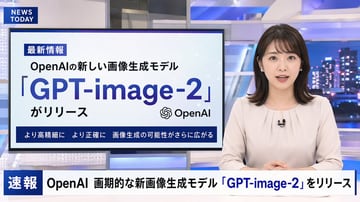
A photorealistic television news broadcast scene featuring a {argument name="anchor appearance" default="young Japanese female with shoulder-length dark hair wearing a light beige blouse"} and a small black lapel microphone, sitting at a news desk and speaking directly to the camera. The studio background is modern with blue and white lighting and a blurred nighttime city skyline on the right. In the top left corner, there is a dark blue graphic with the white text "{argument name="channel logo text" default="NEWS TODAY"}". To the anchor's left is a large presentation monitor displaying a news graphic with a white background and light blue network nodes. The monitor features a dark blue "最新情報" tag, the text "{argument name="subheadline" default="OpenAIの新しい画像生成モデル"}", a large prominent headline "{argument name="main headline" default="「GPT-image-2」"}", the text "がリリース", an OpenAI logo, and a dark blue bottom banner reading "より高精細に より正確に 画像生成の可能性がさらに広がる". Across the bottom of the entire screen is a news ticker lower third with a dark blue "速報" box and the scrolling text "{argument name="ticker text" default="OpenAI 画期的な新画像生成モデル「GPT-image-2」をリリース"}".