
Image2Studio
Examples

gpt-image-2

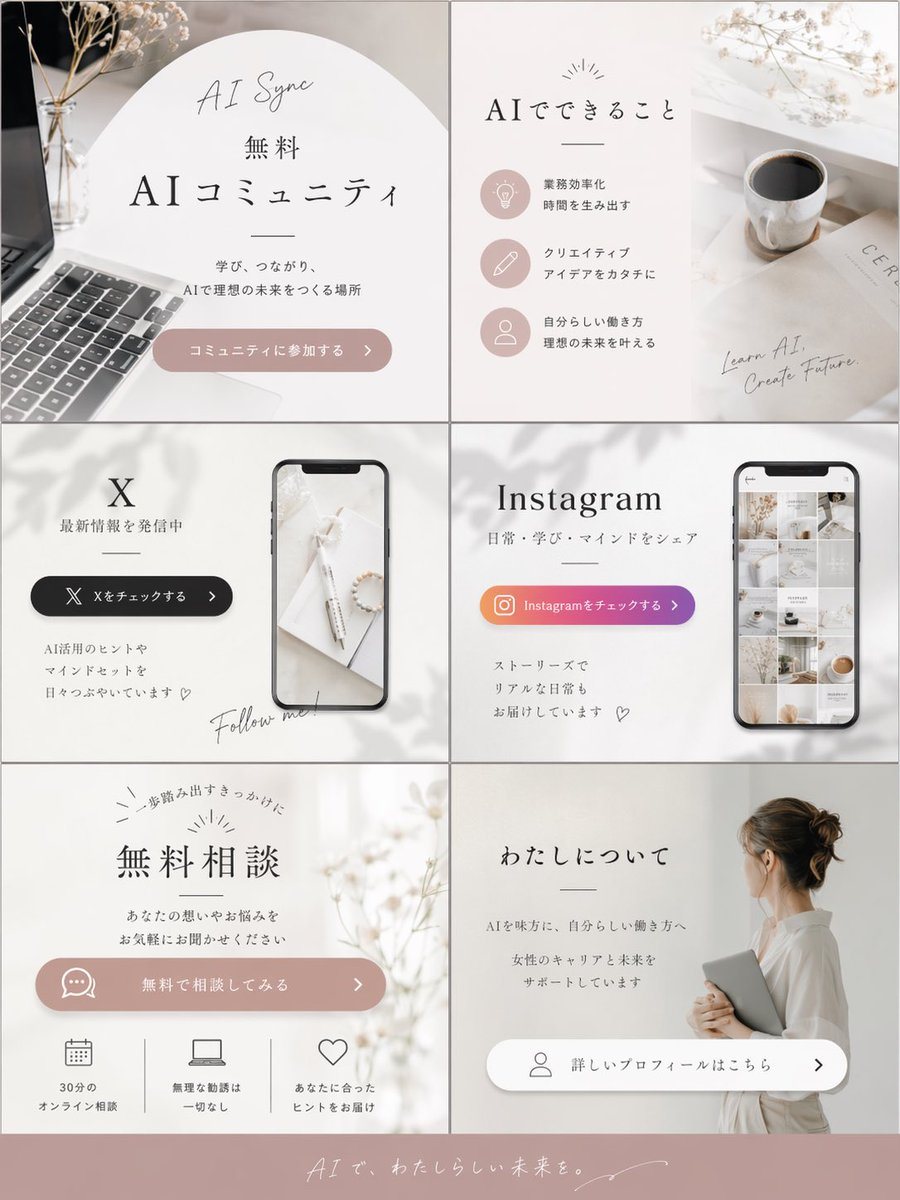
Aesthetic Social Media Link-in-Bio Grid

A 6-panel promotional grid with a footer, typically used as a stylized link-in-bio menu or service overview for creators.

A 6-panel promotional grid with a footer, typically used as a stylized link-in-bio menu or service overview for creators.
Prompt

{ "type": "promotional graphic grid", "style": "minimalist, aesthetic lifestyle, feminine, {argument name=\"color palette\" default=\"soft beige, dusty pink, and white\"}", "layout": "2 columns by 3 rows grid, plus a full-width footer", "panels": [ { "position": "top-left", "text": ["AI Sync", "無料", "{argument name=\"main title\" default=\"AIコミュニティ\"}", "学び、つながり、AIで理想の未来をつくる場所"], "button": "コミュニティに参加する >", "visuals": "laptop keyboard, dried flowers, soft arched background" }, { "position": "top-right", "text": ["AIでできること", "Learn AI, Create Future."], "list_items": { "count": 3, "items": [ {"icon": "lightbulb", "text": "業務効率化 時間を生み出す"}, {"icon": "pencil", "text": "クリエイティブ アイデアをカタチに"}, {"icon": "person", "text": "自分らしい働き方 理想の未来を叶える"} ] }, "visuals": "coffee cup, magazine, soft shadows" }, { "position": "middle-left", "text": ["{argument name=\"social platform 1\" default=\"X\"}", "最新情報を発信中", "AI活用のヒントやマインドセットを日々つぶやいています ♡", "Follow me!"], "button": "Xをチェックする >", "visuals": "smartphone mockup showing a desk scene" }, { "position": "middle-right", "text": ["{argument name=\"social platform 2\" default=\"Instagram\"}", "日常・学び・マインドをシェア", "ストーリーズでリアルな日常もお届けしています ♡"], "button": "Instagramをチェックする >", "visuals": "smartphone mockup showing an aesthetic photo grid" }, { "position": "bottom-left", "text": ["一歩踏み出すきっかけに", "無料相談", "あなたの想いやお悩みをお気軽にお聞かせください"], "button": "無料で相談してみる >", "features": { "count": 3, "items": [ {"icon": "calendar", "text": "30分のオンライン相談"}, {"icon": "laptop", "text": "無理な勧誘は一切なし"}, {"icon": "heart", "text": "あなたに合ったヒントをお届け"} ] }, "visuals": "dried flowers, soft lighting" }, { "position": "bottom-right", "text": ["わたしについて", "AIを味方に、自分らしい働き方へ", "女性のキャリアと未来をサポートしています"], "button": "詳しいプロフィールはこちら >", "visuals": "woman from behind with hair bun, wearing white shirt, holding a tablet" } ], "footer": { "text": "{argument name=\"footer text\" default=\"AIで、わたしらしい未来を。\"}", "background": "dusty pink" } }

Prompt structure
  • Modelgpt-image-2
  • Use casesocial-media-post
  • Styleeditorial, photorealistic
  • Aspect ratioFlexible
Best used for
  • Use casesocial-media-post
  • Styleeditorial, photorealistic
  • Recommended specs1:1, 4:5, 16:9, or 9:16
  • ModelGPT Image 2
How to customize

Use this Aesthetic Social Media Link-in-Bio Grid prompt as a base. Replace the subject, product details, environment, lighting, brand colors, and output ratio while keeping the social-media-post intent and editorial, photorealistic direction stable.

Editable variables
  • SubjectReplace the product, person, scene, interface, or object being generated.
  • Use caseKeep or rewrite the destination as social media post, ad creative, cover image, poster, or ecommerce hero.
  • FrameChoose 1:1, 4:5, 16:9, or 9:16 based on the final placement.
  • Brand cuesAdd colors, materials, props, text-safe space, and the platform where the image will be used.
Recommended specs

Choose the frame for the destination first, then use 1K, 2K, or 4K based on output quality needs. Product images and posters usually benefit from higher resolution.

Pre-generation checklist
  • CheckSubject, lighting, composition, and frame are specific enough to review.
  • CheckText-safe space is included when the image will carry a headline or ad copy.
  • CheckResolution, credit cost, and final destination are checked before generation.
Why this prompt works

Aesthetic Social Media Link-in-Bio Grid works because it starts from the image job, then controls subject, composition, lighting, style, and frame. It is best for social media post while keeping the editorial, photorealistic direction stable.

Common questions
  • Can I use it directly?Yes. Replace the subject, brand cues, and frame, then generate in Image2Studio.
  • Which ratio should I use?Choose 1:1, 4:5, 16:9, or 9:16 based on the destination.