Image2Studio
Examples

gpt-image-2

Create A Clean

Create a clean, modern Japanese webinar thumbnail in a wide 16:9 layout with a corporate tech-design aesthetic. Use a very light gray background with subtle diagonal translucent panels an...

Create a clean, modern Japanese webinar thumbnail in a wide 16:9 layout with a corporate tech-design aesthetic. Use a very light gray background with subtle diagonal translucent panels an...
Prompt

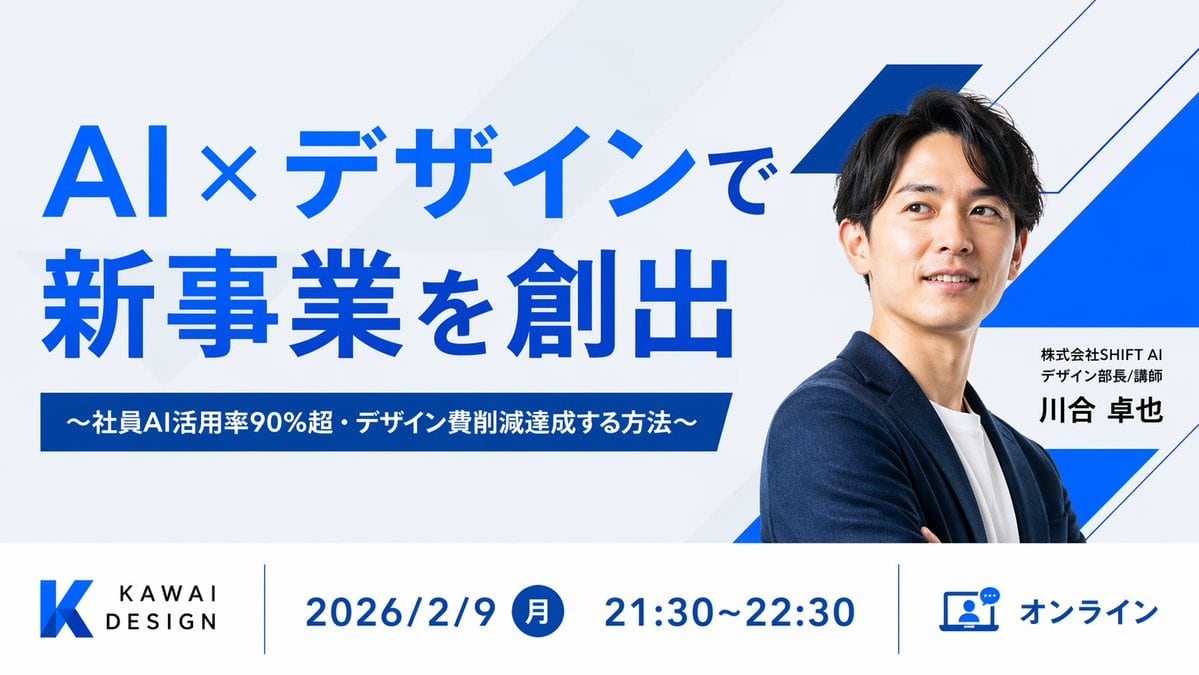
Create a clean, modern Japanese webinar thumbnail in a wide 16:9 layout with a corporate tech-design aesthetic. Use a very light gray background with subtle diagonal translucent panels and bold electric-blue geometric accents, including 3 angular blue-and-white ribbon shapes on the right side behind the speaker. The composition is split into 2 main horizontal sections: a large hero area on top and an information bar across the bottom. In the top-left hero area, place a large bold sans-serif Japanese headline in vivid blue on 2 lines reading {argument name="headline text" default="AI×デザインで\n新事業を創出"}. Beneath it, add a dark-blue rectangular banner with centered white bold text reading {argument name="subheadline text" default="〜社員AI活用率90%超・デザイン費削減達成する方法〜"}. On the right half, show a sharply lit half-body portrait of {argument name="speaker name" default="川合 卓也"}, an East Asian man in his 30s with short black hair, wearing a navy blazer over a white crew-neck shirt, arms folded, facing slightly left toward the headline. His face is intentionally obscured by a square skin-tone blur block centered over the face. Next to his torso, place a white rectangular name card with 2 lines of small black Japanese text above a larger bold black name: {argument name="speaker title" default="株式会社SHIFT AI\nデザイン部長/講師"} and {argument name="speaker name" default="川合 卓也"}. Across the bottom, create a white info bar with thin blue vertical dividers and 4 visual components from left to right: 1) a blue gradient angular K logo with the brand text KAWAI DESIGN in black uppercase sans-serif, 2) the date in large blue text reading 2026/2/9, 3) a blue filled circle containing the white Japanese weekday 月 followed by the time 21:30〜22:30 in large blue text, 4) a blue outlined laptop-and-chat icon followed by the blue text オンライン. Keep typography bold and highly legible, with strong hierarchy, generous spacing, precise alignment, minimal clutter, and a polished webinar promotional design suitable for a business landing page or social media thumbnail.

Prompt structure
  • Modelgpt-image-2
  • Use casesocial-media-post
  • Styleminimal, photorealistic, editorial
  • Aspect ratioFlexible
Best used for
  • Use casesocial-media-post
  • Styleminimal, photorealistic, editorial
  • Recommended specs1:1, 4:5, 16:9, or 9:16
  • ModelGPT Image 2
How to customize

Use this Create A Clean prompt as a base. Replace the subject, product details, environment, lighting, brand colors, and output ratio while keeping the social-media-post intent and minimal, photorealistic, editorial direction stable.

Editable variables
  • SubjectReplace the product, person, scene, interface, or object being generated.
  • Use caseKeep or rewrite the destination as social media post, ad creative, cover image, poster, or ecommerce hero.
  • FrameChoose 1:1, 4:5, 16:9, or 9:16 based on the final placement.
  • Brand cuesAdd colors, materials, props, text-safe space, and the platform where the image will be used.
Recommended specs

Choose the frame for the destination first, then use 1K, 2K, or 4K based on output quality needs. Product images and posters usually benefit from higher resolution.

Pre-generation checklist
  • CheckSubject, lighting, composition, and frame are specific enough to review.
  • CheckText-safe space is included when the image will carry a headline or ad copy.
  • CheckResolution, credit cost, and final destination are checked before generation.
Why this prompt works

Create A Clean works because it starts from the image job, then controls subject, composition, lighting, style, and frame. It is best for social media post while keeping the minimal, photorealistic, editorial direction stable.

Common questions
  • Can I use it directly?Yes. Replace the subject, brand cues, and frame, then generate in Image2Studio.
  • Which ratio should I use?Choose 1:1, 4:5, 16:9, or 9:16 based on the destination.