Image2Studio
Examples

gpt-image-2

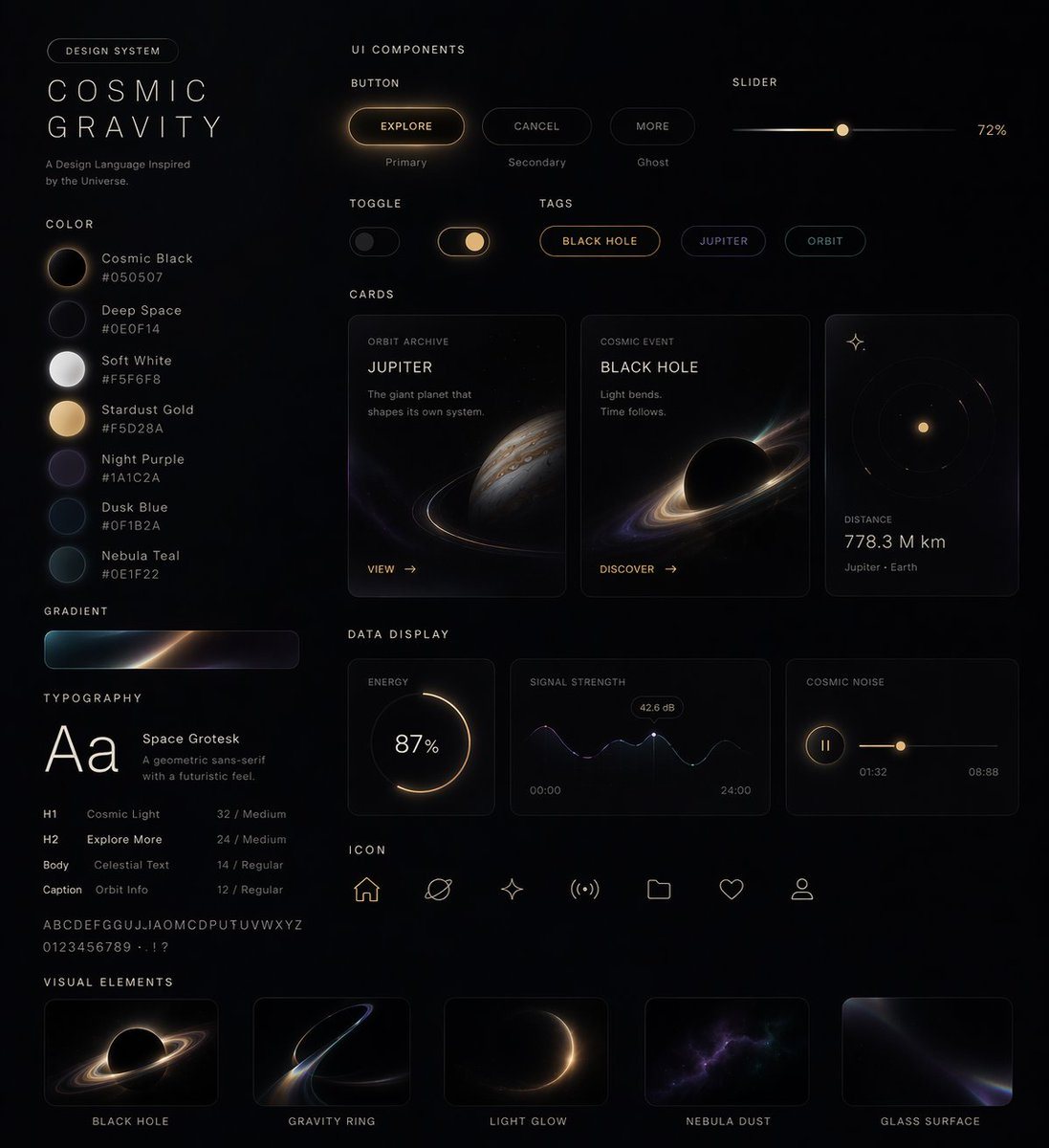
UI Design System

Ready-to-edit UI Design System image prompt.

Ready-to-edit UI Design System image prompt.
Prompt

{ "type": "UI Design System", "theme": "dark mode, space-inspired, glowing accents", "header": { "label": "DESIGN SYSTEM", "title": "{argument name=\"system name\" default=\"COSMIC GRAVITY\"}", "subtitle": "{argument name=\"theme description\" default=\"A Design Language Inspired by the Universe.\"}" }, "layout": { "left_column": [ { "title": "COLOR", "count": 7, "items": [ {"name": "Cosmic Black", "hex": "#050507"}, {"name": "Deep Space", "hex": "#0E0F14"}, {"name": "Soft White", "hex": "#F5F6F8"}, {"name": "{argument name=\"primary accent color\" default=\"Stardust Gold\"}", "hex": "#F5D28A"}, {"name": "Night Purple", "hex": "#1A1C2A"}, {"name": "Dusk Blue", "hex": "#0F1B2A"}, {"name": "Nebula Teal", "hex": "#0E1F22"} ] }, { "title": "GRADIENT", "count": 1, "description": "horizontal bar showing a dark-to-light-to-dark cosmic glow" }, { "title": "TYPOGRAPHY", "font": "{argument name=\"font name\" default=\"Space Grotesk\"}", "hierarchy_count": 4, "levels": ["H1 Cosmic Light", "H2 Explore More", "Body Celestial Text", "Caption Orbit Info"] } ], "main_column": [ { "title": "UI COMPONENTS", "subsections": [ {"title": "BUTTON", "count": 3, "labels": ["EXPLORE (Primary)", "CANCEL (Secondary)", "MORE (Ghost)"]}, {"title": "SLIDER", "count": 1, "value": "72%"}, {"title": "TOGGLE", "count": 2, "states": ["Off", "On"]}, {"title": "TAGS", "count": 3, "labels": ["BLACK HOLE", "JUPITER", "ORBIT"]} ] }, { "title": "CARDS", "count": 3, "items": [ {"title": "{argument name=\"card subject\" default=\"JUPITER\"}", "subtitle": "ORBIT ARCHIVE", "image": "Jupiter planet"}, {"title": "BLACK HOLE", "subtitle": "COSMIC EVENT", "image": "Black hole with accretion disk"}, {"title": "DISTANCE", "value": "778.3 M km", "image": "Concentric orbital rings"} ] }, { "title": "DATA DISPLAY", "count": 3, "items": [ {"title": "ENERGY", "type": "circular progress ring", "value": "87%"}, {"title": "SIGNAL STRENGTH", "type": "line graph with glowing nodes", "value": "42.6 dB"}, {"title": "COSMIC NOISE", "type": "audio player UI"} ] }, { "title": "ICON", "count": 7, "labels": ["Home", "Planet", "Sparkle", "Signal", "Folder", "Heart", "User"] } ], "bottom_row": [ { "title": "VISUAL ELEMENTS", "count": 5, "labels": ["BLACK HOLE", "GRAVITY RING", "LIGHT GLOW", "NEBULA DUST", "GLASS SURFACE"] } ] } }

Prompt structure
  • Modelgpt-image-2
  • Use caseapp-ui-mockup
  • Styleeditorial, luxury
  • Aspect ratioFlexible
Best used for
  • Use caseapp-ui-mockup
  • Styleeditorial, luxury
  • Recommended specs1:1, 4:5, 16:9, or 9:16
  • ModelGPT Image 2
How to customize

Use this UI Design System prompt as a base. Replace the subject, product details, environment, lighting, brand colors, and output ratio while keeping the app-ui-mockup intent and editorial, luxury direction stable.

Editable variables
  • SubjectReplace the product, person, scene, interface, or object being generated.
  • Use caseKeep or rewrite the destination as app ui mockup, ad creative, cover image, poster, or ecommerce hero.
  • FrameChoose 1:1, 4:5, 16:9, or 9:16 based on the final placement.
  • Brand cuesAdd colors, materials, props, text-safe space, and the platform where the image will be used.
Recommended specs

Choose the frame for the destination first, then use 1K, 2K, or 4K based on output quality needs. Product images and posters usually benefit from higher resolution.

Pre-generation checklist
  • CheckSubject, lighting, composition, and frame are specific enough to review.
  • CheckText-safe space is included when the image will carry a headline or ad copy.
  • CheckResolution, credit cost, and final destination are checked before generation.
Why this prompt works

UI Design System works because it starts from the image job, then controls subject, composition, lighting, style, and frame. It is best for app ui mockup while keeping the editorial, luxury direction stable.

Common questions
  • Can I use it directly?Yes. Replace the subject, brand cues, and frame, then generate in Image2Studio.
  • Which ratio should I use?Choose 1:1, 4:5, 16:9, or 9:16 based on the destination.