Image2Studio
Examples

gpt-image-2

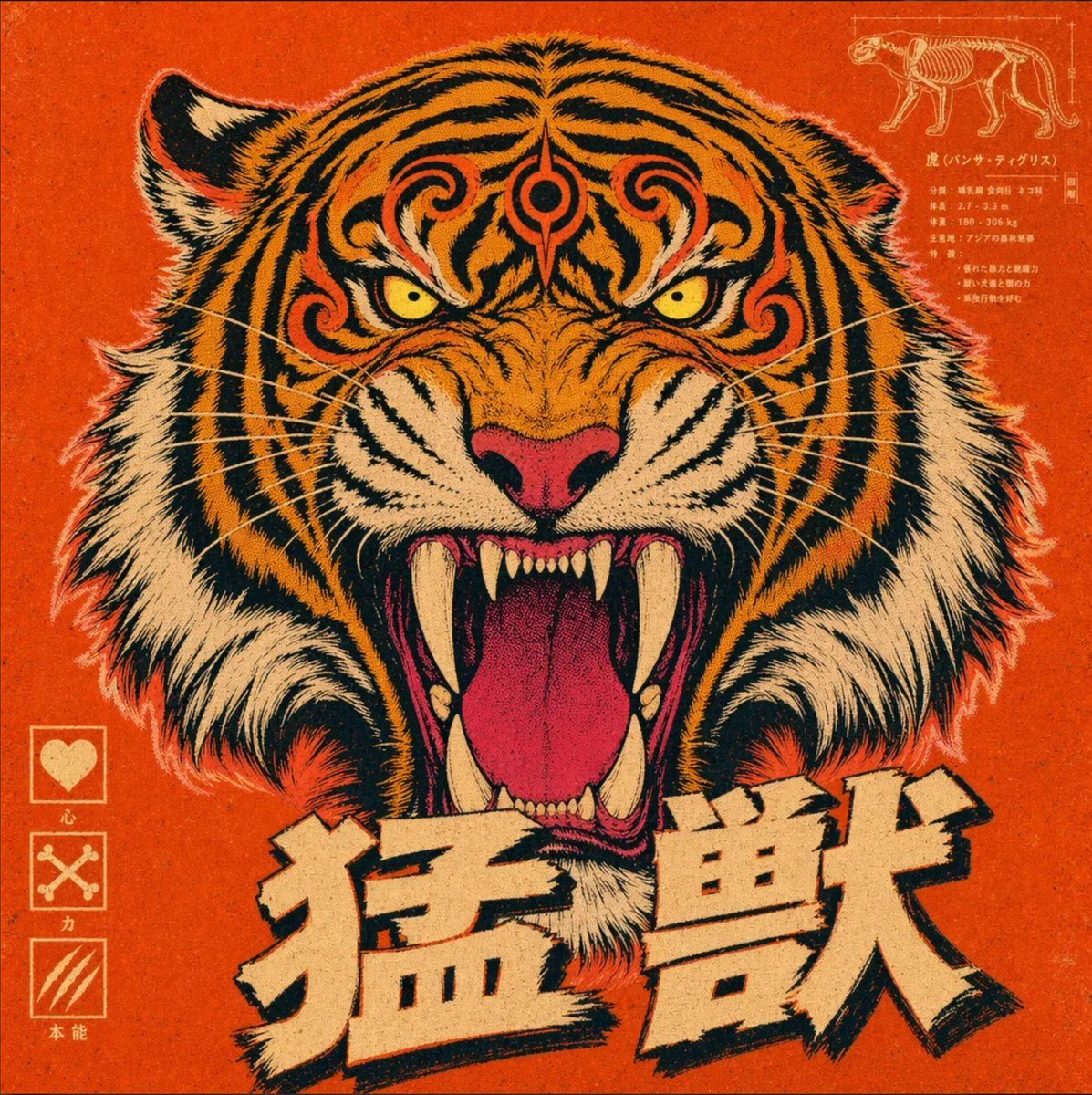
Create A Bold Vintage Japanese-inspired Poster On A Square Canvas

Create a bold vintage Japanese-inspired poster on a square canvas with a fierce front-facing tiger head as the single central subject, perfectly symmetrical and filling most of the frame....

Create a bold vintage Japanese-inspired poster on a square canvas with a fierce front-facing tiger head as the single central subject, perfectly symmetrical and filling most of the frame....
Prompt

Create a bold vintage Japanese-inspired poster on a square canvas with a fierce front-facing tiger head as the single central subject, perfectly symmetrical and filling most of the frame. The tiger is roaring with its mouth wide open, showing long curved ivory fangs, smaller lower teeth, a vivid pink tongue, a dark throat, a pink nose, intense yellow eyes, and dramatic black stripes over saturated orange fur with white cheek and neck fur. Add ornamental swirling stripe patterns on the forehead to give the face a stylized mythic look. Use a gritty retro screenprint or risograph texture with visible grain, worn ink, slightly distressed edges, and a limited palette of burnt orange, black, cream, white, muted pink, and small accents of yellow. The background should be a flat textured orange-red field. In the top right, include 1 small technical diagram panel showing a side-view tiger skeleton in thin cream line art with compact vertical Japanese annotation text beneath and beside it, like a pseudo-scientific label block. In the bottom left, include 3 vertically stacked icon boxes with thin cream borders: the first contains a heart icon with the label 心, the second contains crossed bones with the label 力, and the third contains three claw marks with the label 本能. Across the bottom center, place 2 very large cream-colored Japanese kanji characters with heavy black drop shadows and a rough hand-cut block print feel: 猛獣. Keep the overall composition aggressive, iconic, poster-like, centered, and highly graphic, blending traditional Japanese poster aesthetics, tattoo flash energy, and vintage animal anatomy chart styling.

Prompt structure
  • Modelgpt-image-2
  • Use casecampaign-poster
  • Stylecinematic, editorial
  • Aspect ratioFlexible
Best used for
  • Use casecampaign-poster
  • Stylecinematic, editorial
  • Recommended specs1:1, 4:5, 16:9, or 9:16
  • ModelGPT Image 2
How to customize

Use this Create A Bold Vintage Japanese-inspired Poster On A Square Canvas prompt as a base. Replace the subject, product details, environment, lighting, brand colors, and output ratio while keeping the campaign-poster intent and cinematic, editorial direction stable.

Editable variables
  • SubjectReplace the product, person, scene, interface, or object being generated.
  • Use caseKeep or rewrite the destination as campaign poster, ad creative, cover image, poster, or ecommerce hero.
  • FrameChoose 1:1, 4:5, 16:9, or 9:16 based on the final placement.
  • Brand cuesAdd colors, materials, props, text-safe space, and the platform where the image will be used.
Recommended specs

Choose the frame for the destination first, then use 1K, 2K, or 4K based on output quality needs. Product images and posters usually benefit from higher resolution.

Pre-generation checklist
  • CheckSubject, lighting, composition, and frame are specific enough to review.
  • CheckText-safe space is included when the image will carry a headline or ad copy.
  • CheckResolution, credit cost, and final destination are checked before generation.
Why this prompt works

Create A Bold Vintage Japanese-inspired Poster On A Square Canvas works because it starts from the image job, then controls subject, composition, lighting, style, and frame. It is best for campaign poster while keeping the cinematic, editorial direction stable.

Common questions
  • Can I use it directly?Yes. Replace the subject, brand cues, and frame, then generate in Image2Studio.
  • Which ratio should I use?Choose 1:1, 4:5, 16:9, or 9:16 based on the destination.