Image2Studio
Examples

gpt-image-2

Using The Provided Reference Photo

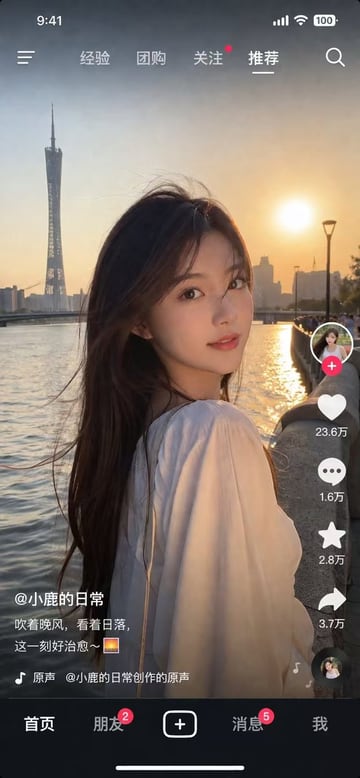
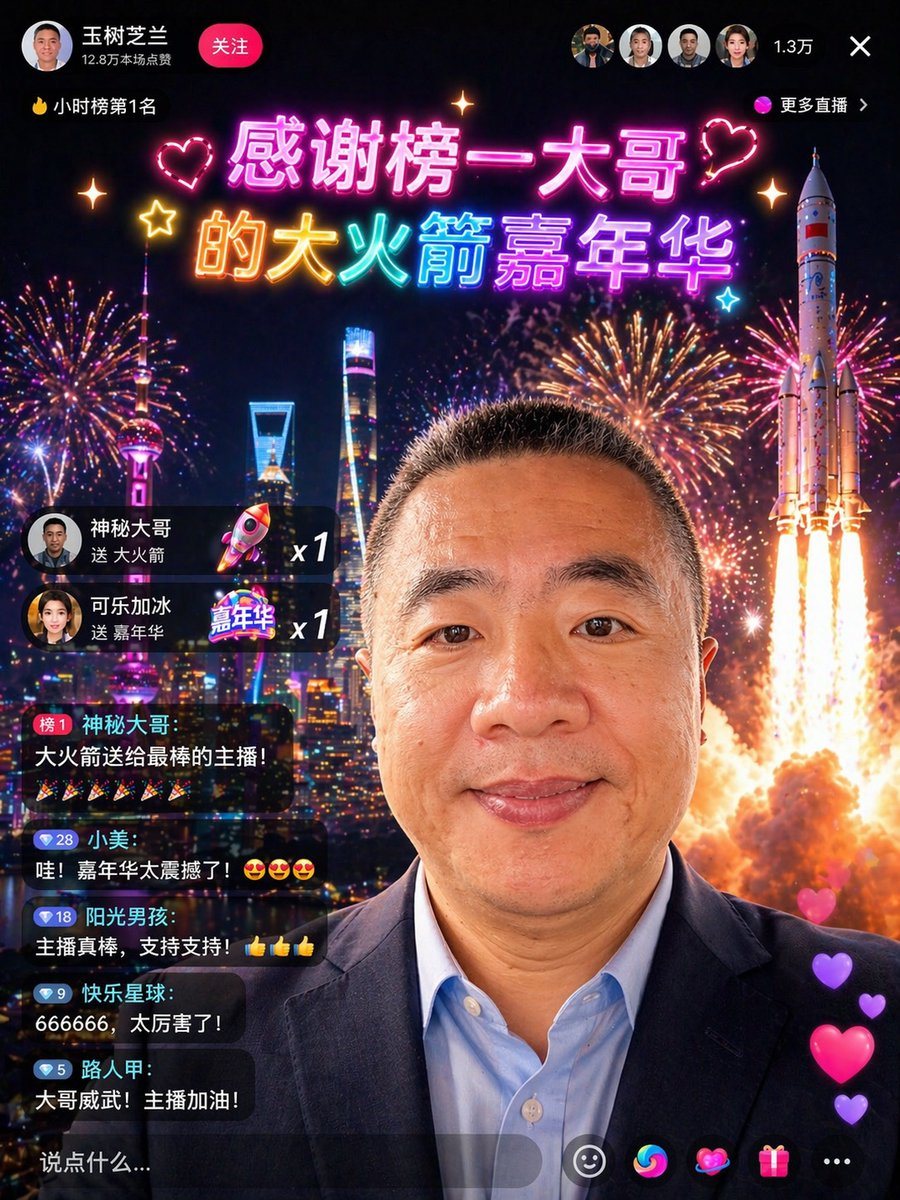
Using the provided reference photo, transform the person into a flashy Chinese livestream screenshot while keeping the same head position, crop, hairstyle, and overall identity. Replace t...

Using the provided reference photo, transform the person into a flashy Chinese livestream screenshot while keeping the same head position, crop, hairstyle, and overall identity. Replace t...
Prompt

Using the provided reference photo, transform the person into a flashy Chinese livestream screenshot while keeping the same head position, crop, hairstyle, and overall identity. Replace the outdoor umbrella-and-street background with a dramatic night city skyline scene filled with fireworks, and add a large rocket launch on the right side. Change the clothing to a dark business blazer over a light blue dress shirt to make the subject look like a high-value livestream VIP guest. Overlay a polished live-stream app interface in Chinese: top left profile area with the name "王树芝兰", a red "关注" button, and the line "12.8万本场浪费"; top left ranking tag "🔥小时榜第1名"; top center a glowing neon celebratory headline in 2 lines reading "感谢榜一大哥" and "的大火箭嘉年华" with heart and sparkle decorations; top right 4 small circular viewer avatars, the count "1.3万", a close "×" icon, and the label "更多直播". On the left side add 2 gift notification cards: "神秘大哥 送 大火箭 x1" and "可乐加冰 送 嘉年华 x1". Below that add 5 stacked chat bubbles with exact visible usernames and messages: 1) "榜1 神秘大哥:大火箭送给最棒的主播!" followed by 6 party popper emojis, 2) "小美:哇!嘉年华太震撼了!😍😍😍", 3) "阳光男孩:主播真棒,支持支持!👍👍👍", 4) "快乐星球:666666,太厉害了!", 5) "路人甲:大哥威武!主播加油!". Add a bottom translucent comment bar with "说点什么...". Add 5 bottom action icons: smiley, colorful swirl, heart, gift box, and three dots. Add a vertical stream of 4 floating heart reactions on the lower right. Make the composite look like a convincing, high-end social app livestream screenshot with smooth Chinese typography, vivid neon colors, realistic UI integration, and festive viral spectacle.

Prompt structure
  • Modelgpt-image-2
  • Use casesocial-media-post
  • Stylephotorealistic, cyberpunk, cinematic, luxury
  • Aspect ratioFlexible
Best used for
  • Use casesocial-media-post
  • Stylephotorealistic, cyberpunk, cinematic, luxury
  • Recommended specs1:1, 4:5, 16:9, or 9:16
  • ModelGPT Image 2
How to customize

Use this Using The Provided Reference Photo prompt as a base. Replace the subject, product details, environment, lighting, brand colors, and output ratio while keeping the social-media-post intent and photorealistic, cyberpunk, cinematic, luxury direction stable.

Editable variables
  • SubjectReplace the product, person, scene, interface, or object being generated.
  • Use caseKeep or rewrite the destination as social media post, ad creative, cover image, poster, or ecommerce hero.
  • FrameChoose 1:1, 4:5, 16:9, or 9:16 based on the final placement.
  • Brand cuesAdd colors, materials, props, text-safe space, and the platform where the image will be used.
Recommended specs

Choose the frame for the destination first, then use 1K, 2K, or 4K based on output quality needs. Product images and posters usually benefit from higher resolution.

Pre-generation checklist
  • CheckSubject, lighting, composition, and frame are specific enough to review.
  • CheckText-safe space is included when the image will carry a headline or ad copy.
  • CheckResolution, credit cost, and final destination are checked before generation.
Why this prompt works

Using The Provided Reference Photo works because it starts from the image job, then controls subject, composition, lighting, style, and frame. It is best for social media post while keeping the photorealistic, cyberpunk, cinematic, luxury direction stable.

Common questions
  • Can I use it directly?Yes. Replace the subject, brand cues, and frame, then generate in Image2Studio.
  • Which ratio should I use?Choose 1:1, 4:5, 16:9, or 9:16 based on the destination.