
Image2Studio
Examples

gpt-image-2

Side-by-side Social Media Comparison Graphic On A Dark Black Background

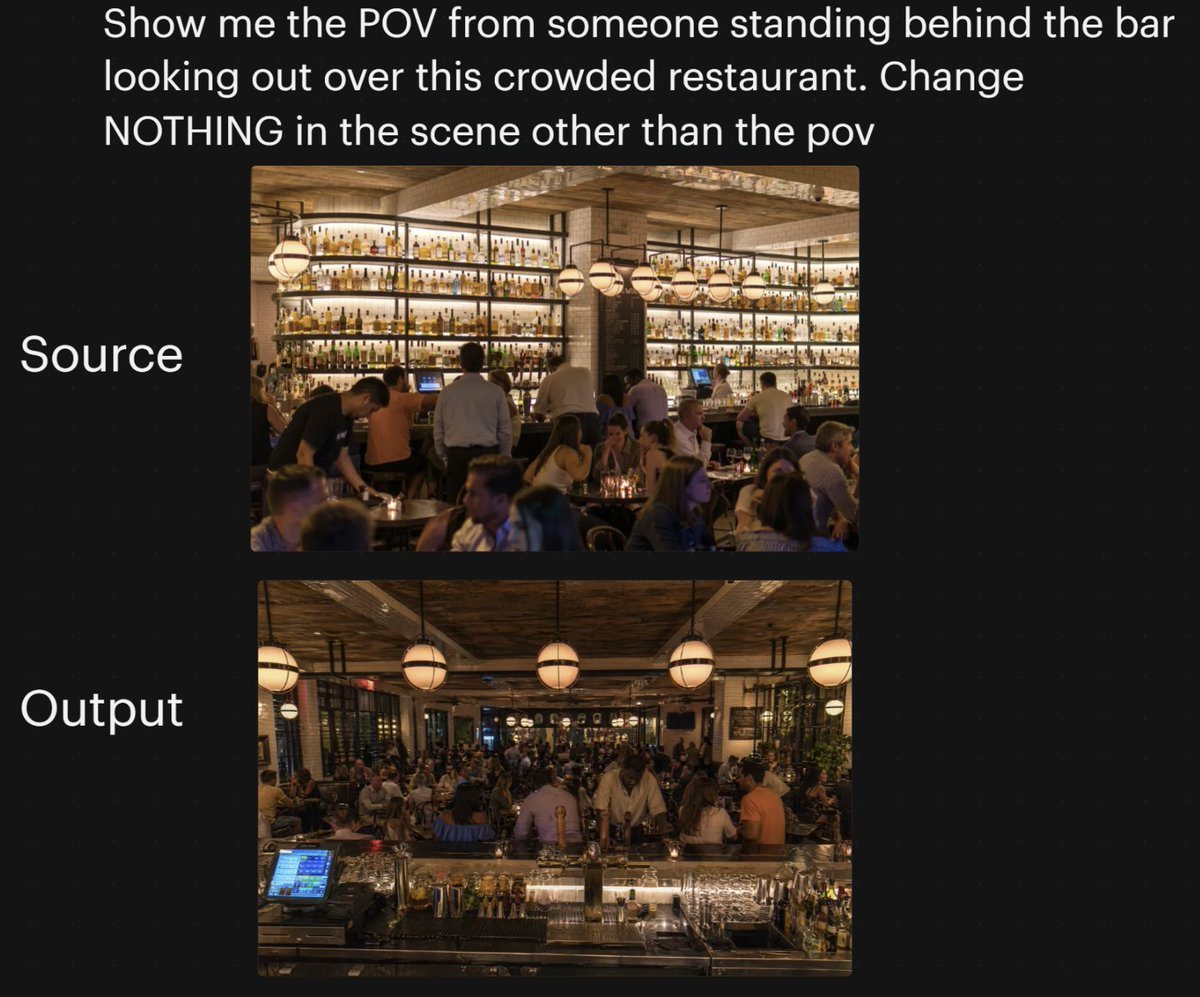
A side-by-side social media comparison graphic on a dark black background, showing a camera-angle transformation test for a busy restaurant interior. At the very top, large white sans-ser...

A side-by-side social media comparison graphic on a dark black background, showing a camera-angle transformation test for a busy restaurant interior. At the very top, large white sans-ser...
Prompt

A side-by-side social media comparison graphic on a dark black background, showing a camera-angle transformation test for a busy restaurant interior. At the very top, large white sans-serif text reads: {argument name="headline text" default="Show me the POV from someone standing behind the bar looking out over this crowded restaurant. Change NOTHING in the scene other than the pov"}. Below that, centered on the page, are 2 vertically stacked rectangular photos with rounded corners. To the left of the top image, large white text reads "Source"; to the left of the bottom image, large white text reads "Output". The top image shows the original restaurant scene from the customer side facing the back bar: a warm, upscale, crowded restaurant at night with a massive illuminated wall of liquor bottles on shelves, wood ceiling beams, hanging globe pendant lights, bartenders and servers working, and many seated guests in the foreground and midground. The lower image shows the same restaurant with the same lighting, décor, crowd density, bottle wall, pendant lights, and overall atmosphere, but from a new viewpoint: the camera is now standing behind the bar looking outward across the crowded dining room. In the foreground of the lower image, include the bar counter surface with glassware, bottles, metal bar tools, and a glowing POS touchscreen at front left, reinforcing the behind-the-bar POV. Keep both photos photorealistic, warm amber lighting, lively evening ambiance, and maintain the sense that the lower image is the same scene with only the camera angle changed. Add subtle social-post styling with generous margins and clean layout, suitable for a tweet screenshot or AI image comparison post.

Prompt structure
  • Modelgpt-image-2
  • Use casesocial-media-post
  • Stylephotorealistic, editorial, minimal
  • Aspect ratioFlexible
Best used for
  • Use casesocial-media-post
  • Stylephotorealistic, editorial, minimal
  • Recommended specs1:1, 4:5, 16:9, or 9:16
  • ModelGPT Image 2
How to customize

Use this Side-by-side Social Media Comparison Graphic On A Dark Black Background prompt as a base. Replace the subject, product details, environment, lighting, brand colors, and output ratio while keeping the social-media-post intent and photorealistic, editorial, minimal direction stable.

Editable variables
  • SubjectReplace the product, person, scene, interface, or object being generated.
  • Use caseKeep or rewrite the destination as social media post, ad creative, cover image, poster, or ecommerce hero.
  • FrameChoose 1:1, 4:5, 16:9, or 9:16 based on the final placement.
  • Brand cuesAdd colors, materials, props, text-safe space, and the platform where the image will be used.
Recommended specs

Choose the frame for the destination first, then use 1K, 2K, or 4K based on output quality needs. Product images and posters usually benefit from higher resolution.

Pre-generation checklist
  • CheckSubject, lighting, composition, and frame are specific enough to review.
  • CheckText-safe space is included when the image will carry a headline or ad copy.
  • CheckResolution, credit cost, and final destination are checked before generation.
Why this prompt works

Side-by-side Social Media Comparison Graphic On A Dark Black Background works because it starts from the image job, then controls subject, composition, lighting, style, and frame. It is best for social media post while keeping the photorealistic, editorial, minimal direction stable.

Common questions
  • Can I use it directly?Yes. Replace the subject, brand cues, and frame, then generate in Image2Studio.
  • Which ratio should I use?Choose 1:1, 4:5, 16:9, or 9:16 based on the destination.