
Image2Studio
Examples

gpt-image-2

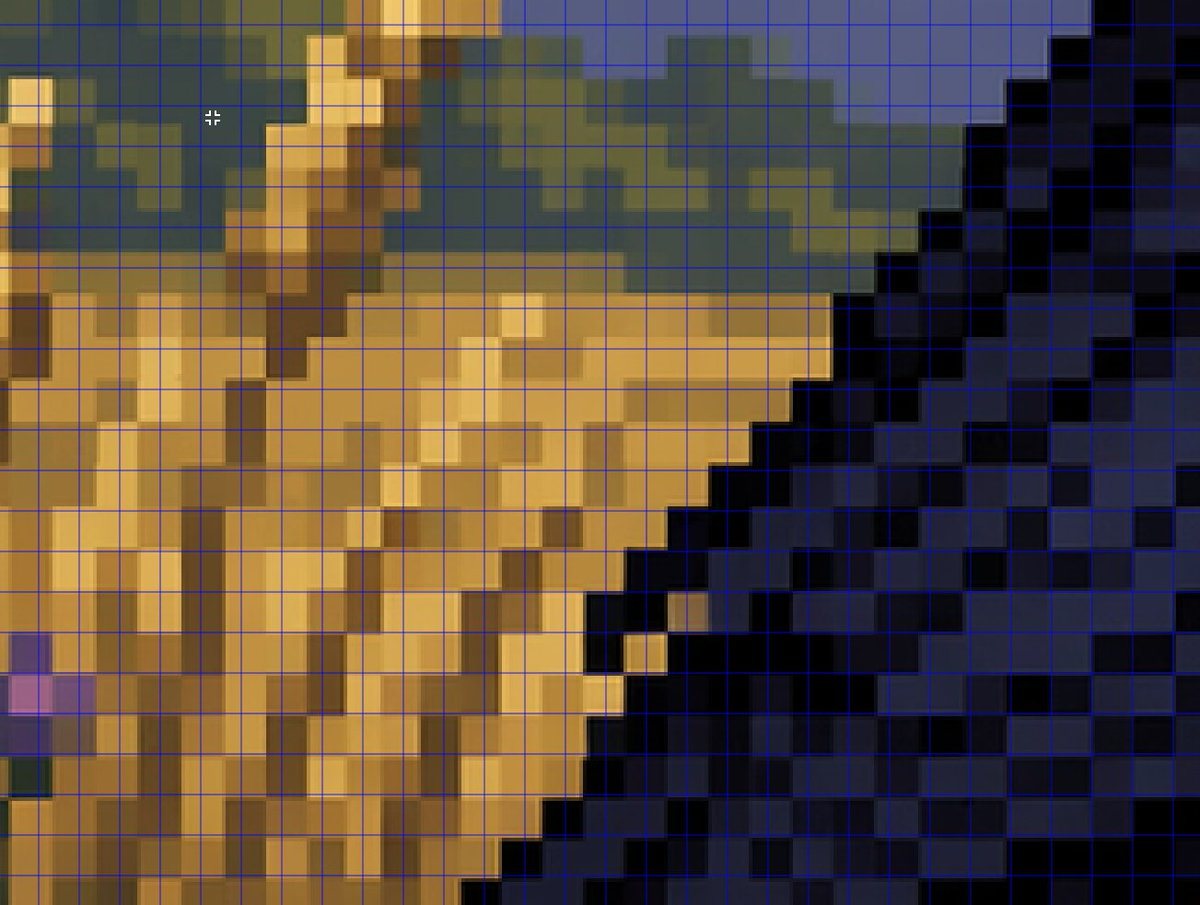
Tightly Zoomed-in Comparison Image Demonstrating Fake Pixel-art Renderin

A tightly zoomed-in comparison image demonstrating fake pixel-art rendering, showing a low-resolution-looking scene enlarged on screen with a thin bright blue square grid overlay across t...

A tightly zoomed-in comparison image demonstrating fake pixel-art rendering, showing a low-resolution-looking scene enlarged on screen with a thin bright blue square grid overlay across t...
Prompt

A tightly zoomed-in comparison image demonstrating fake pixel-art rendering, showing a low-resolution-looking scene enlarged on screen with a thin bright blue square grid overlay across the entire frame. The composition is an abstract close crop of a pixel-art-style environment: sandy tan and ochre blocky forms on the left and center, a dark navy and black stepped diagonal mass on the right, muted olive-green and slate-blue shapes along the upper background, and a few lighter golden highlights. Every edge looks staircase-like and blocky at first glance, but the colors softly blur and blend within the apparent squares instead of aligning perfectly to the grid, creating the impression of pixel art that breaks down under inspection. Include a small white crosshair cursor near the upper left quadrant to suggest image analysis in an editor. The overall look should feel like a screenshot from a graphics program or social media demonstration about how AI can imitate retro game art aesthetics without producing true grid-perfect pixel art, with no text labels visible.

Prompt structure
  • Modelgpt-image-2
  • Use casesocial-media-post
  • Styleprompt-defined style
  • Aspect ratioFlexible
Best used for
  • Use casesocial-media-post
  • Styleprompt-defined style
  • Recommended specs1:1, 4:5, 16:9, or 9:16
  • ModelGPT Image 2
How to customize

Use this Tightly Zoomed-in Comparison Image Demonstrating Fake Pixel-art Renderin prompt as a base. Replace the subject, product details, environment, lighting, brand colors, and output ratio while keeping the social-media-post intent and the visual style direction stable.

Editable variables
  • SubjectReplace the product, person, scene, interface, or object being generated.
  • Use caseKeep or rewrite the destination as social media post, ad creative, cover image, poster, or ecommerce hero.
  • FrameChoose 1:1, 4:5, 16:9, or 9:16 based on the final placement.
  • Brand cuesAdd colors, materials, props, text-safe space, and the platform where the image will be used.
Recommended specs

Choose the frame for the destination first, then use 1K, 2K, or 4K based on output quality needs. Product images and posters usually benefit from higher resolution.

Pre-generation checklist
  • CheckSubject, lighting, composition, and frame are specific enough to review.
  • CheckText-safe space is included when the image will carry a headline or ad copy.
  • CheckResolution, credit cost, and final destination are checked before generation.
Why this prompt works

Tightly Zoomed-in Comparison Image Demonstrating Fake Pixel-art Renderin works because it starts from the image job, then controls subject, composition, lighting, style, and frame. It is best for social media post while keeping the prompt-defined style direction stable.

Common questions
  • Can I use it directly?Yes. Replace the subject, brand cues, and frame, then generate in Image2Studio.
  • Which ratio should I use?Choose 1:1, 4:5, 16:9, or 9:16 based on the destination.