Image2Studio
Examples

gpt-image-2

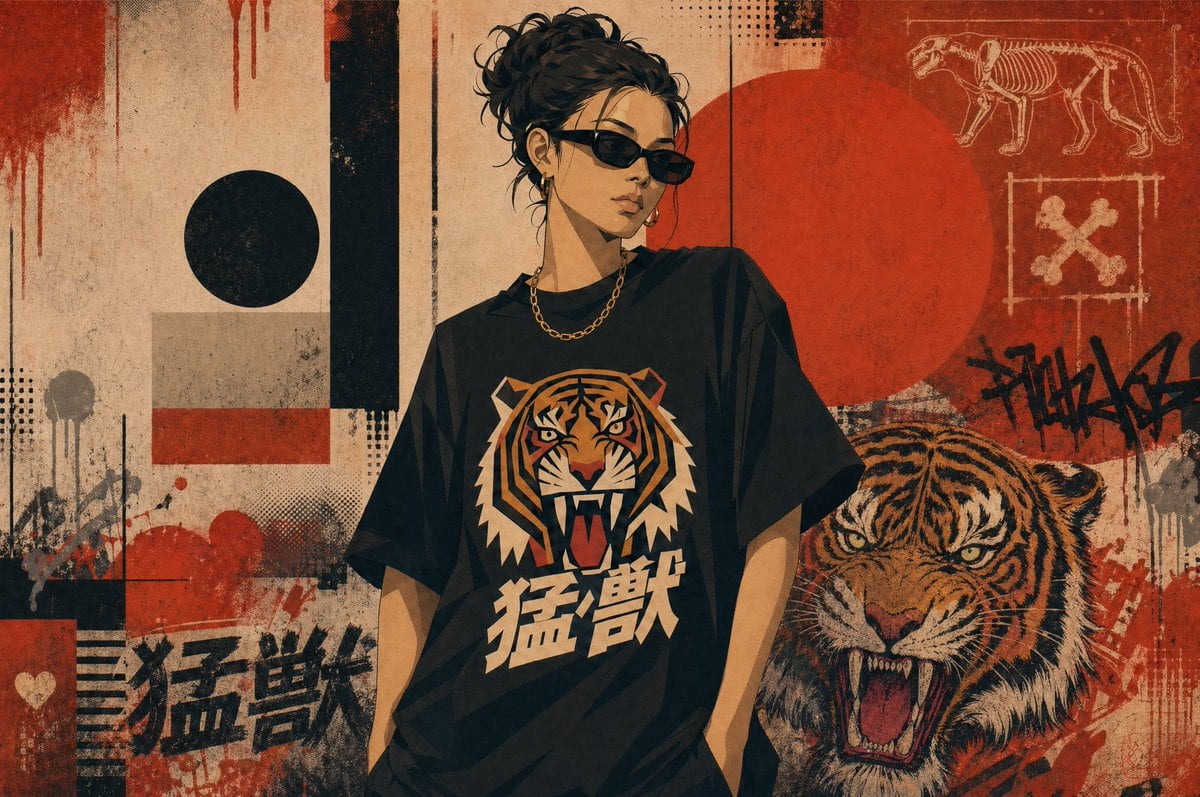
Create A Gritty Streetwear Poster Illustration

Create a gritty streetwear poster illustration with a single central figure standing in front of an urban collage wall. The person is a stylish young adult with dark brown to black curly...

Create a gritty streetwear poster illustration with a single central figure standing in front of an urban collage wall. The person is a stylish young adult with dark brown to black curly...
Prompt

Create a gritty streetwear poster illustration with a single central figure standing in front of an urban collage wall. The person is a stylish young adult with {argument name="hair color" default="dark brown to black"} curly hair tied in a messy bun, wearing black rectangular sunglasses, a short gold chain necklace, and an oversized black graphic T-shirt. The face is intentionally obscured by a vertical blurred rectangular censor block in warm beige-brown tones. The shirt features a large roaring tiger head graphic in orange, cream, black, and red, with bold Japanese kanji text reading {argument name="shirt text" default="猛獣"} beneath it. Show the figure from about mid-thigh up, relaxed posture, one hand tucked in a pocket, fashion-editorial attitude. The background is a distressed mixed-media mural in beige, black, and brick red with heavy grunge texture, paper wear, paint drips, splatters, halftone dots, and graffiti layering. Include 2 large circles: 1 black circle on the left and 1 large red circle behind the figure on the right. Include 3 tall black vertical bars in the composition, plus 1 pale rectangular block and 1 thin horizontal red stripe on the left side. Add 2 visible instances of the kanji text 猛獣 in the wall art, one large black painted version in the lower left and one on the shirt. On the right side of the wall, include 1 detailed roaring tiger illustration in profile/front three-quarter view, mouth open, orange and black striped fur. In the upper right corner, add 2 chalk-like diagram motifs: 1 skeletal big cat drawing and 1 square-framed crossed-bones symbol. Add 1 black graffiti tag near the right edge and 1 small white heart near the lower left. Use a muted vintage palette of tan, rust red, black, cream, and dark orange. The overall style should feel like Japanese-inspired street fashion poster art, raw, rebellious, textured, high-contrast, and screen-printed on worn paper.

Prompt structure
  • Modelgpt-image-2
  • Use caseapp-ui-mockup
  • Stylewatercolor, editorial, luxury
  • Aspect ratioFlexible
Best used for
  • Use caseapp-ui-mockup
  • Stylewatercolor, editorial, luxury
  • Recommended specs1:1, 4:5, 16:9, or 9:16
  • ModelGPT Image 2
How to customize

Use this Create A Gritty Streetwear Poster Illustration prompt as a base. Replace the subject, product details, environment, lighting, brand colors, and output ratio while keeping the app-ui-mockup intent and watercolor, editorial, luxury direction stable.

Editable variables
  • SubjectReplace the product, person, scene, interface, or object being generated.
  • Use caseKeep or rewrite the destination as app ui mockup, ad creative, cover image, poster, or ecommerce hero.
  • FrameChoose 1:1, 4:5, 16:9, or 9:16 based on the final placement.
  • Brand cuesAdd colors, materials, props, text-safe space, and the platform where the image will be used.
Recommended specs

Choose the frame for the destination first, then use 1K, 2K, or 4K based on output quality needs. Product images and posters usually benefit from higher resolution.

Pre-generation checklist
  • CheckSubject, lighting, composition, and frame are specific enough to review.
  • CheckText-safe space is included when the image will carry a headline or ad copy.
  • CheckResolution, credit cost, and final destination are checked before generation.
Why this prompt works

Create A Gritty Streetwear Poster Illustration works because it starts from the image job, then controls subject, composition, lighting, style, and frame. It is best for app ui mockup while keeping the watercolor, editorial, luxury direction stable.

Common questions
  • Can I use it directly?Yes. Replace the subject, brand cues, and frame, then generate in Image2Studio.
  • Which ratio should I use?Choose 1:1, 4:5, 16:9, or 9:16 based on the destination.