Image2Studio
Examples

gpt-image-2

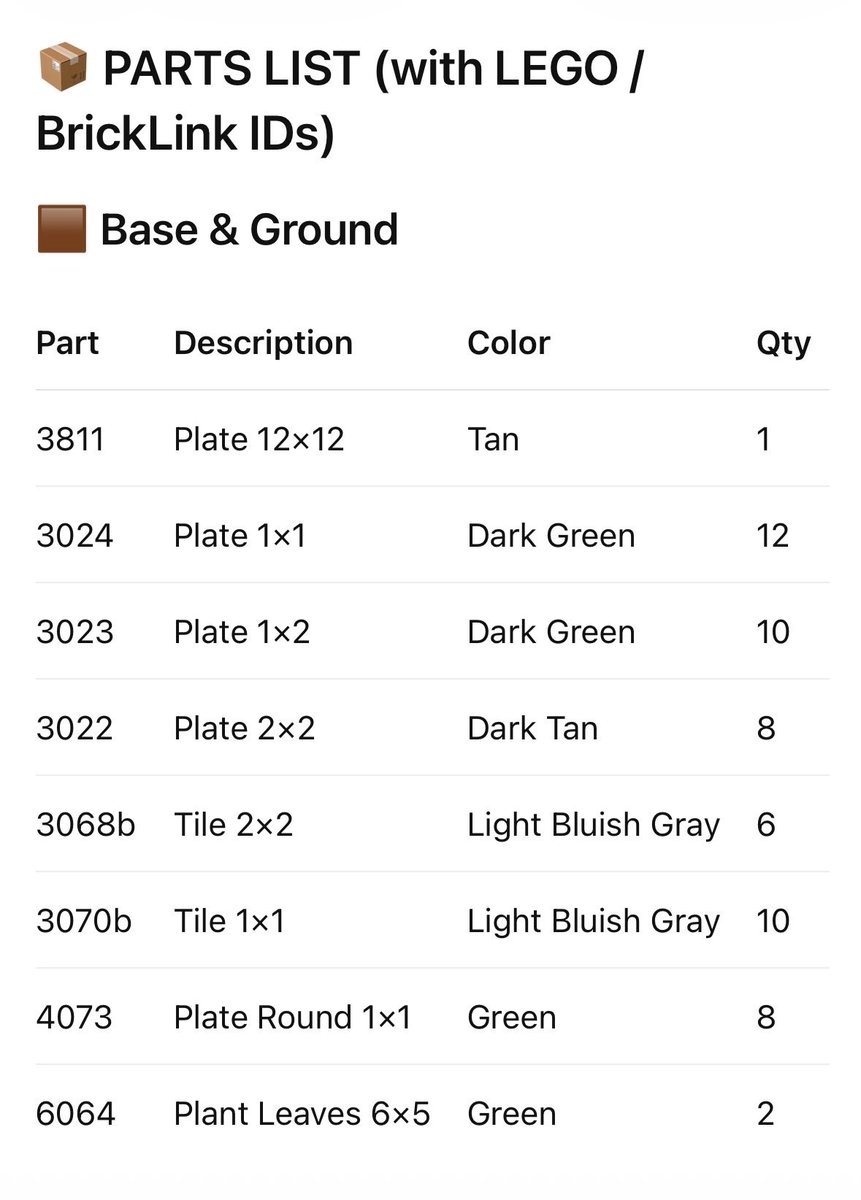
LEGO Parts List Inventory Page

This prompt generates a clean LEGO-style parts inventory sheet with BrickLink IDs, useful for instruction booklets, build guides, or printable custom set documentation.

This prompt generates a clean LEGO-style parts inventory sheet with BrickLink IDs, useful for instruction booklets, build guides, or printable custom set documentation.
Prompt

{"type":"LEGO parts list infographic page","subject":"clean printed inventory sheet for a custom LEGO build","style":"minimalist instruction-manual graphic, flat white background, crisp black sans-serif typography, subtle light gray row dividers, editorial layout","page":{"orientation":"portrait","background":"white","margin":"generous"},"header":{"icon_count":2,"icons":["small cardboard package emoji/icon at top left","small brown square color swatch icon before section title"],"title":"PARTS LIST (with LEGO / BrickLink IDs)","section_title":"{argument name=\"section title\" default=\"Base & Ground\"}"},"table":{"columns":["Part","Description","Color","Qty"],"row_count":8,"rows":[{"Part":"3811","Description":"Plate 12×12","Color":"Tan","Qty":"1"},{"Part":"3024","Description":"Plate 1×1","Color":"Dark Green","Qty":"12"},{"Part":"3023","Description":"Plate 1×2","Color":"Dark Green","Qty":"10"},{"Part":"3022","Description":"Plate 2×2","Color":"Dark Tan","Qty":"8"},{"Part":"3068b","Description":"Tile 2×2","Color":"Light Bluish Gray","Qty":"6"},{"Part":"3070b","Description":"Tile 1×1","Color":"Light Bluish Gray","Qty":"10"},{"Part":"4073","Description":"Plate Round 1×1","Color":"Green","Qty":"8"},{"Part":"6064","Description":"Plant Leaves 6×5","Color":"Green","Qty":"2"}]},"customization":{"title":"{argument name=\"headline text\" default=\"PARTS LIST (with LEGO / BrickLink IDs)\"}","section":"{argument name=\"section title\" default=\"Base & Ground\"}","accent_color":"{argument name=\"accent color\" default=\"brown\"}","page_style":"{argument name=\"document style\" default=\"LEGO instruction manual inventory sheet\"}"},"composition":"title aligned upper left, section label directly below, large 4-column table centered below with evenly spaced rows, all text left-aligned except quantity column visually narrow at right","quality":"high-resolution print-ready mockup, sharp vector-like text rendering"}

Prompt structure
  • Modelgpt-image-2
  • Use caseavatar
  • Styleminimal, editorial
  • Aspect ratioFlexible
Best used for
  • Use caseavatar
  • Styleminimal, editorial
  • Recommended specs1:1, 4:5, 16:9, or 9:16
  • ModelGPT Image 2
How to customize

Use this LEGO Parts List Inventory Page prompt as a base. Replace the subject, product details, environment, lighting, brand colors, and output ratio while keeping the avatar intent and minimal, editorial direction stable.

Editable variables
  • SubjectReplace the product, person, scene, interface, or object being generated.
  • Use caseKeep or rewrite the destination as avatar, ad creative, cover image, poster, or ecommerce hero.
  • FrameChoose 1:1, 4:5, 16:9, or 9:16 based on the final placement.
  • Brand cuesAdd colors, materials, props, text-safe space, and the platform where the image will be used.
Recommended specs

Choose the frame for the destination first, then use 1K, 2K, or 4K based on output quality needs. Product images and posters usually benefit from higher resolution.

Pre-generation checklist
  • CheckSubject, lighting, composition, and frame are specific enough to review.
  • CheckText-safe space is included when the image will carry a headline or ad copy.
  • CheckResolution, credit cost, and final destination are checked before generation.
Why this prompt works

LEGO Parts List Inventory Page works because it starts from the image job, then controls subject, composition, lighting, style, and frame. It is best for avatar while keeping the minimal, editorial direction stable.

Common questions
  • Can I use it directly?Yes. Replace the subject, brand cues, and frame, then generate in Image2Studio.
  • Which ratio should I use?Choose 1:1, 4:5, 16:9, or 9:16 based on the destination.