Image2Studio
Examples

gpt-image-2

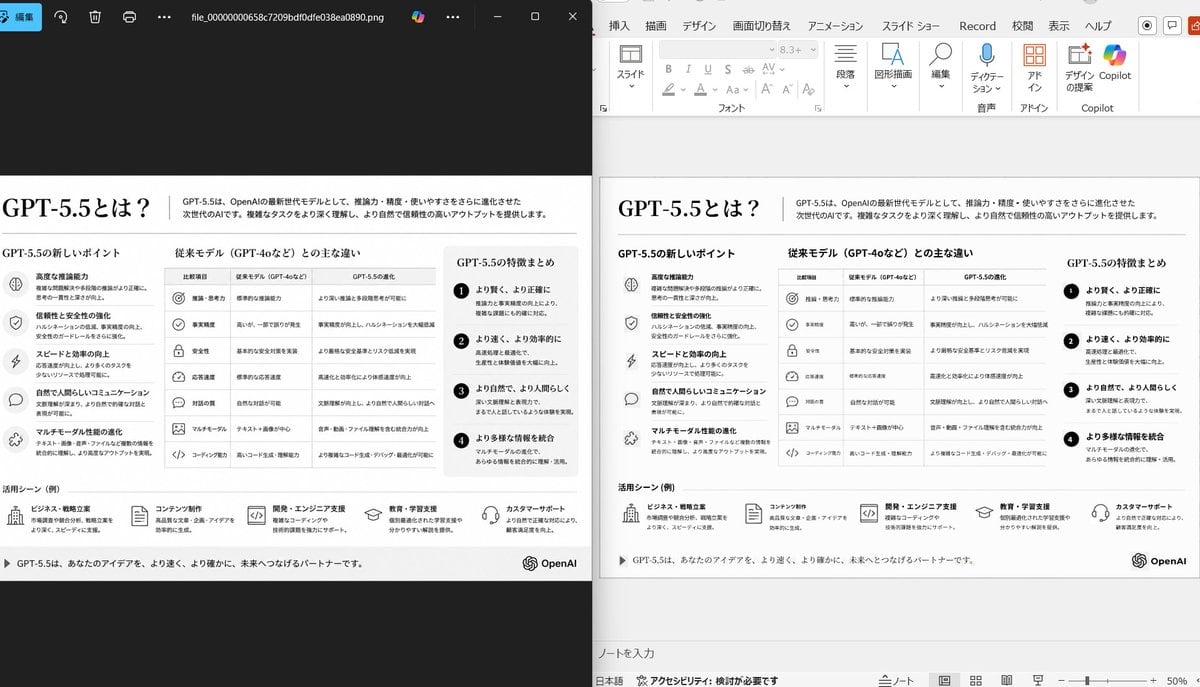
Using The Provided Reference Image Of The PowerPoint Slide Screenshot

Using the provided reference image of the PowerPoint slide screenshot, recreate it as a clean, polished slide conversion result inside a side-by-side desktop comparison. Keep the same Jap...

Using the provided reference image of the PowerPoint slide screenshot, recreate it as a clean, polished slide conversion result inside a side-by-side desktop comparison. Keep the same Jap...
Prompt

Using the provided reference image of the PowerPoint slide screenshot, recreate it as a clean, polished slide conversion result inside a side-by-side desktop comparison. Keep the same Japanese slide topic and overall layout, but remove the dense selection handles, edit boxes, and malformed vector artifacts from the reference so the slide appears properly reconstructed. Show 2 panels: on the left, a dark image viewer window displaying the exported slide image; on the right, the same slide opened in PowerPoint editing view. Preserve the original monochrome infographic style and Japanese text structure, but make the typography legible and the icons, dividers, and columns cleanly aligned. Keep the slide as a single-page infographic with 5 main content areas: 1 top title/header row, 3 mid-page comparison columns, 1 bottom use-case row containing 5 icon-labeled items. Include a footer line and the OpenAI logo at bottom right. Emphasize that this is a faithful PPT reconstruction from the uploaded image, with a realistic Windows desktop app screenshot look.

Prompt structure
  • Modelgpt-image-2
  • Use casebrand-identity
  • Stylephotorealistic, editorial, minimal
  • Aspect ratioFlexible
Best used for
  • Use casebrand-identity
  • Stylephotorealistic, editorial, minimal
  • Recommended specs1:1, 4:5, 16:9, or 9:16
  • ModelGPT Image 2
How to customize

Use this Using The Provided Reference Image Of The PowerPoint Slide Screenshot prompt as a base. Replace the subject, product details, environment, lighting, brand colors, and output ratio while keeping the brand-identity intent and photorealistic, editorial, minimal direction stable.

Editable variables
  • SubjectReplace the product, person, scene, interface, or object being generated.
  • Use caseKeep or rewrite the destination as brand identity, ad creative, cover image, poster, or ecommerce hero.
  • FrameChoose 1:1, 4:5, 16:9, or 9:16 based on the final placement.
  • Brand cuesAdd colors, materials, props, text-safe space, and the platform where the image will be used.
Recommended specs

Choose the frame for the destination first, then use 1K, 2K, or 4K based on output quality needs. Product images and posters usually benefit from higher resolution.

Pre-generation checklist
  • CheckSubject, lighting, composition, and frame are specific enough to review.
  • CheckText-safe space is included when the image will carry a headline or ad copy.
  • CheckResolution, credit cost, and final destination are checked before generation.
Why this prompt works

Using The Provided Reference Image Of The PowerPoint Slide Screenshot works because it starts from the image job, then controls subject, composition, lighting, style, and frame. It is best for brand identity while keeping the photorealistic, editorial, minimal direction stable.

Common questions
  • Can I use it directly?Yes. Replace the subject, brand cues, and frame, then generate in Image2Studio.
  • Which ratio should I use?Choose 1:1, 4:5, 16:9, or 9:16 based on the destination.