Image2Studio
Examples

gpt-image-2

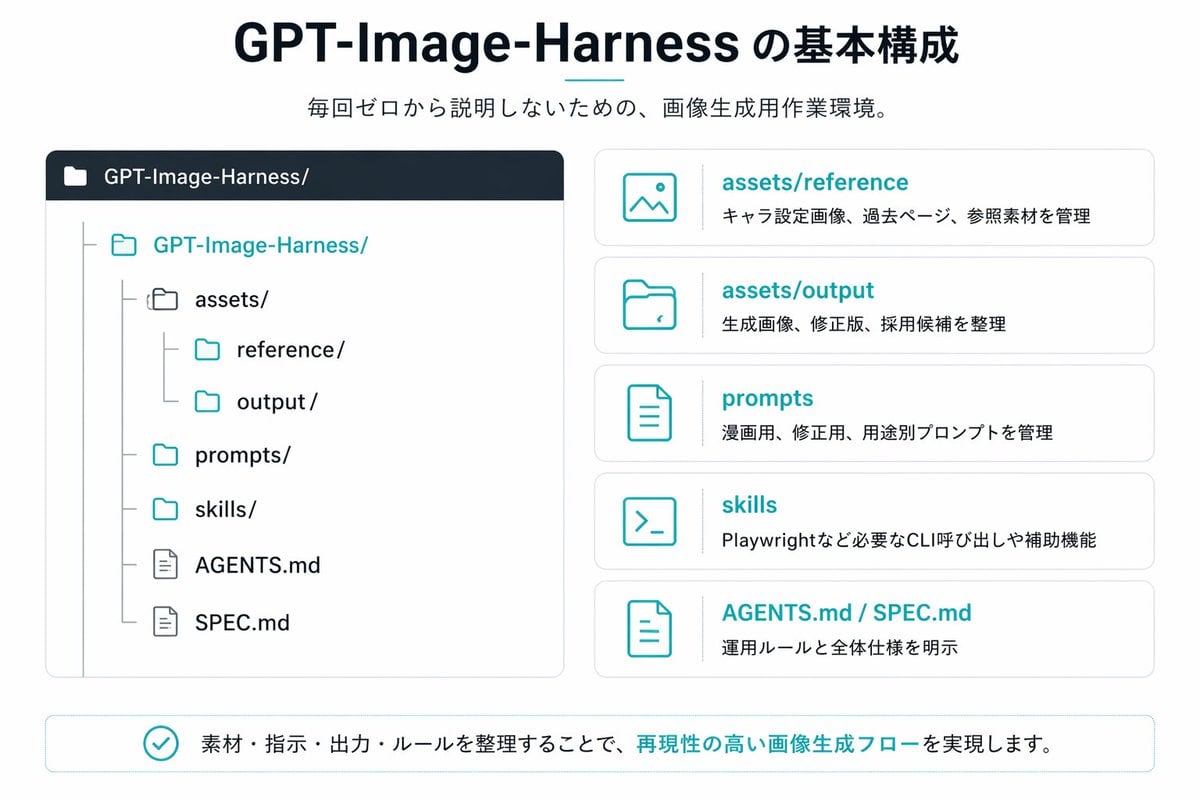
Japanese Infographic Slide

Ready-to-edit Japanese infographic slide image prompt.

Ready-to-edit Japanese infographic slide image prompt.
Prompt

{"type":"Japanese infographic slide","style":"clean flat vector presentation graphic, minimal corporate design, white background, dark navy and teal accent colors, subtle light gray borders, crisp typography, balanced spacing","canvas":{"aspect_ratio":"16:9"},"title_block":{"headline":"{argument name=\"headline text\" default=\"GPT-Image-Harness の基本構成\"}","subheadline":"{argument name=\"subheadline text\" default=\"毎回ゼロから説明しないための、画像生成用作業環境。\"}","headline_alignment":"center top","headline_style":"bold sans-serif, very large, dark navy","accent":"short horizontal teal line under headline"},"layout":{"sections":[{"title":"repository tree","position":"left large panel","count":1,"panel_style":"rounded rectangle with light gray outline and dark navy header bar","header_label":"GPT-Image-Harness/","content":{"type":"folder tree","root":"GPT-Image-Harness/","items_count":8,"items":["assets/","reference/","output/","prompts/","skills/","AGENTS.md","SPEC.md"],"hierarchy":"assets contains reference and output; root also contains prompts, skills, AGENTS.md, and SPEC.md","icon_style":"outline folder and document icons, teal for active folders, gray for nested guides"}},{"title":"feature cards","position":"right stacked column","count":5,"panel_style":"five separate rounded white cards with light gray outline, evenly spaced vertically","labels":["assets/reference","assets/output","prompts","skills","AGENTS.md / SPEC.md"],"descriptions":["キャラ設定画像、過去ページ、参照素材を管理","生成画像、修正版、採用候補を整理","漫画用、修正版、用途別プロンプトを管理","Playwrightなど必要なCLI呼び出しや補助機能","運用ルールと全体仕様を明示"],"icons":["image icon","folder icon","document icon","terminal icon","document icon"],"title_color":"teal","body_color":"dark gray"},{"title":"bottom message","position":"bottom full width banner","count":1,"panel_style":"rounded rectangle with light teal outline","content":{"icon":"teal circled checkmark","text":"{argument name=\"footer message\" default=\"素材・指示・出力・ルールを整理することで、再現性の高い画像生成フローを実現します。\"}","emphasis":"the phrase 再現性の高い画像生成フロー is teal and bold"}}],"composition":"title and subtitle centered at top, large repository diagram on left, five explanatory cards on right, summary banner across bottom"},"text_language":"Japanese","visual_details":{"left_panel_header_gradient":"dark navy to slightly lighter navy","folder_tree_line_color":"light gray","teal_hex_approx":"#22B8C7","navy_hex_approx":"#0F2236","background":"very light gray-white"}}

Prompt structure
  • Modelgpt-image-2
  • Use casesocial-media-post
  • Styleminimal, editorial
  • Aspect ratioFlexible
Best used for
  • Use casesocial-media-post
  • Styleminimal, editorial
  • Recommended specs1:1, 4:5, 16:9, or 9:16
  • ModelGPT Image 2
How to customize

Use this Japanese Infographic Slide prompt as a base. Replace the subject, product details, environment, lighting, brand colors, and output ratio while keeping the social-media-post intent and minimal, editorial direction stable.

Editable variables
  • SubjectReplace the product, person, scene, interface, or object being generated.
  • Use caseKeep or rewrite the destination as social media post, ad creative, cover image, poster, or ecommerce hero.
  • FrameChoose 1:1, 4:5, 16:9, or 9:16 based on the final placement.
  • Brand cuesAdd colors, materials, props, text-safe space, and the platform where the image will be used.
Recommended specs

Choose the frame for the destination first, then use 1K, 2K, or 4K based on output quality needs. Product images and posters usually benefit from higher resolution.

Pre-generation checklist
  • CheckSubject, lighting, composition, and frame are specific enough to review.
  • CheckText-safe space is included when the image will carry a headline or ad copy.
  • CheckResolution, credit cost, and final destination are checked before generation.
Why this prompt works

Japanese Infographic Slide works because it starts from the image job, then controls subject, composition, lighting, style, and frame. It is best for social media post while keeping the minimal, editorial direction stable.

Common questions
  • Can I use it directly?Yes. Replace the subject, brand cues, and frame, then generate in Image2Studio.
  • Which ratio should I use?Choose 1:1, 4:5, 16:9, or 9:16 based on the destination.