Image2Studio
Examples

gpt-image-2

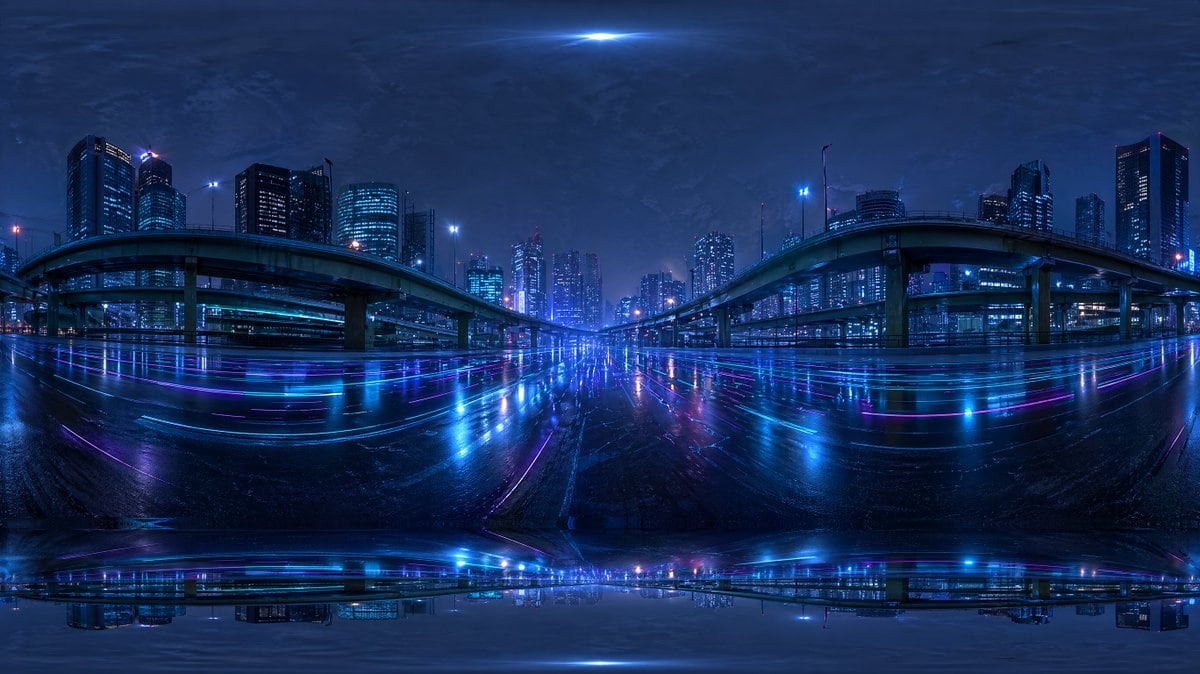
Create A Seamless-looking 360-degree Equirectangular HDRI Environment Ma

Create a seamless-looking 360-degree equirectangular HDRI environment map of a futuristic urban expressway at night, viewed from the middle of a wide wet roadway beneath elevated highways...

Create a seamless-looking 360-degree equirectangular HDRI environment map of a futuristic urban expressway at night, viewed from the middle of a wide wet roadway beneath elevated highways...
Prompt

Create a seamless-looking 360-degree equirectangular HDRI environment map of a futuristic urban expressway at night, viewed from the middle of a wide wet roadway beneath elevated highways in a dense modern city. Use a panoramic full-surround composition with strong fisheye-like equirectangular distortion at the top and bottom edges, designed for use as a Blender world background. The scene should feature 2 large curving elevated highway ramps, one on the left and one on the right, arching inward toward the center, with multiple supporting pillars and additional overpass layers receding into the distance. Surround the roadway with a skyline of illuminated high-rise office towers and apartment buildings, with cool blue and cyan windows and a few magenta and purple accent lights. Make the road surface glossy and rain-soaked, reflecting the city lights in long horizontal streaks of neon blue, violet, and pink. Add subtle light trails and luminous reflections across the pavement, creating a cyberpunk mood. The sky should be dark, cloudy, and atmospheric with a faint bright glow at the zenith and soft haze around distant buildings. Keep the overall palette dominated by deep indigo, electric blue, cyan, and purple. The image should feel cinematic, moody, ultra-detailed, photorealistic, high dynamic range, with realistic urban lighting and mirrored wet-surface reflections, suitable as an HDRI backdrop. Include slight panorama seam artifacts and stretched distortion near the poles so it feels like an AI-generated but usable environment map.

Prompt structure
  • Modelgpt-image-2
  • Use casesocial-media-post
  • Stylephotorealistic, cyberpunk, 3d-render, cinematic
  • Aspect ratioFlexible
Best used for
  • Use casesocial-media-post
  • Stylephotorealistic, cyberpunk, 3d-render, cinematic
  • Recommended specs1:1, 4:5, 16:9, or 9:16
  • ModelGPT Image 2
How to customize

Use this Create A Seamless-looking 360-degree Equirectangular HDRI Environment Ma prompt as a base. Replace the subject, product details, environment, lighting, brand colors, and output ratio while keeping the social-media-post intent and photorealistic, cyberpunk, 3d-render, cinematic direction stable.

Editable variables
  • SubjectReplace the product, person, scene, interface, or object being generated.
  • Use caseKeep or rewrite the destination as social media post, ad creative, cover image, poster, or ecommerce hero.
  • FrameChoose 1:1, 4:5, 16:9, or 9:16 based on the final placement.
  • Brand cuesAdd colors, materials, props, text-safe space, and the platform where the image will be used.
Recommended specs

Choose the frame for the destination first, then use 1K, 2K, or 4K based on output quality needs. Product images and posters usually benefit from higher resolution.

Pre-generation checklist
  • CheckSubject, lighting, composition, and frame are specific enough to review.
  • CheckText-safe space is included when the image will carry a headline or ad copy.
  • CheckResolution, credit cost, and final destination are checked before generation.
Why this prompt works

Create A Seamless-looking 360-degree Equirectangular HDRI Environment Ma works because it starts from the image job, then controls subject, composition, lighting, style, and frame. It is best for social media post while keeping the photorealistic, cyberpunk, 3d-render, cinematic direction stable.

Common questions
  • Can I use it directly?Yes. Replace the subject, brand cues, and frame, then generate in Image2Studio.
  • Which ratio should I use?Choose 1:1, 4:5, 16:9, or 9:16 based on the destination.